

Now that you've got your product or course up and running in Simplero, it's time to set the price you’re customers will pay!
It's easy to create both lifetime access (purchase) prices and subscription prices in Simplero.
Think of purchase prices as a mortgage (the customer owns the property at the end) and subscription prices like rent (you only get to stay there as long as you're making payments).
Purchase prices can be paid-in-full, or they can be a series of payments made over time.
Subscription prices are typically charged at a pre-determined interval, whether it's monthly, yearly, or on some other subscription schedule.
Create Prices
Select Sales from your Simplero Dashboard.
Choose Products from the dropdown menu and select a product from your list.
Select the Pricing tab.
To add a new price or payment plan that will appear on your order form, click the + Add a price button:

-
Type of Price: "Single payment", “Payment plan”, or "Recurring."
-
Single payment and Payment plan - Provide lifetime access, once paid in full. If a customer defaults on a payment plan, their access won’t be released until they pay.
For purchases, include the amount (how much is paid upon purchase) and the number of instalments (the number of payments to be made). When setting up instalments, select the payment amount for each payment after the initial purchase and the time between those payments.
-
Recurring- Provides access for a limited period for each payment made.
For subscriptions, input the amount, length of access, trial period (optional), and the subscription settings (where you set renewal options or create time-specific commitments). Learn more about subscription settings in this guide.
-
Credit- this option will only show if you have enabled the use of Points in your Account test_track.
You'll be shown the price creation popup. Complete each of the following fields:
-
Internal Name: This will only appear to Admins on the back end to help you remember what the price is for
-
Label on order form: This will be shown next to the price on the order form. For example, "Early Bird" or "Payment Plan."

-
Payment: Enter the price value. If you’d like to set up multiple instalments click on ‘Go advanced’.

Add installments we’ll give you further options to configure when, how much, and for how long.

Access: Determine whether the price will be visible to everyone who sees your order form (Published/List Price) or only to those who have the link to a Secret price or a Coupon code:

Triggers: Close the popup to add triggers.

-
Advanced Settings are located at the bottom of the :
Allow donations - when purchasing the product using this price, we’ll show an additional field for them to add a donation amount on top of the price.
-
Replace another price - You can set up a price to replace another price. For example, during an early bird sale or a campaign:
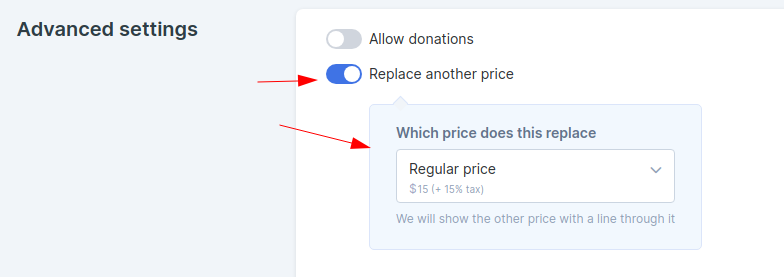
We will show the replaced price amount strikethrough on the order form, to make it clear this is a special deal:

Limit the date ranges this price is available: This feature lets you set up a limited time for how long this price is available:

-
Limit number of participants at this price - Choose the maximum number of participants who can purchase at this price.
Reserve seats for 10 minutes after they open the order form, to encourage them to buy.
Show the number of seats left on the order form to create urgency:

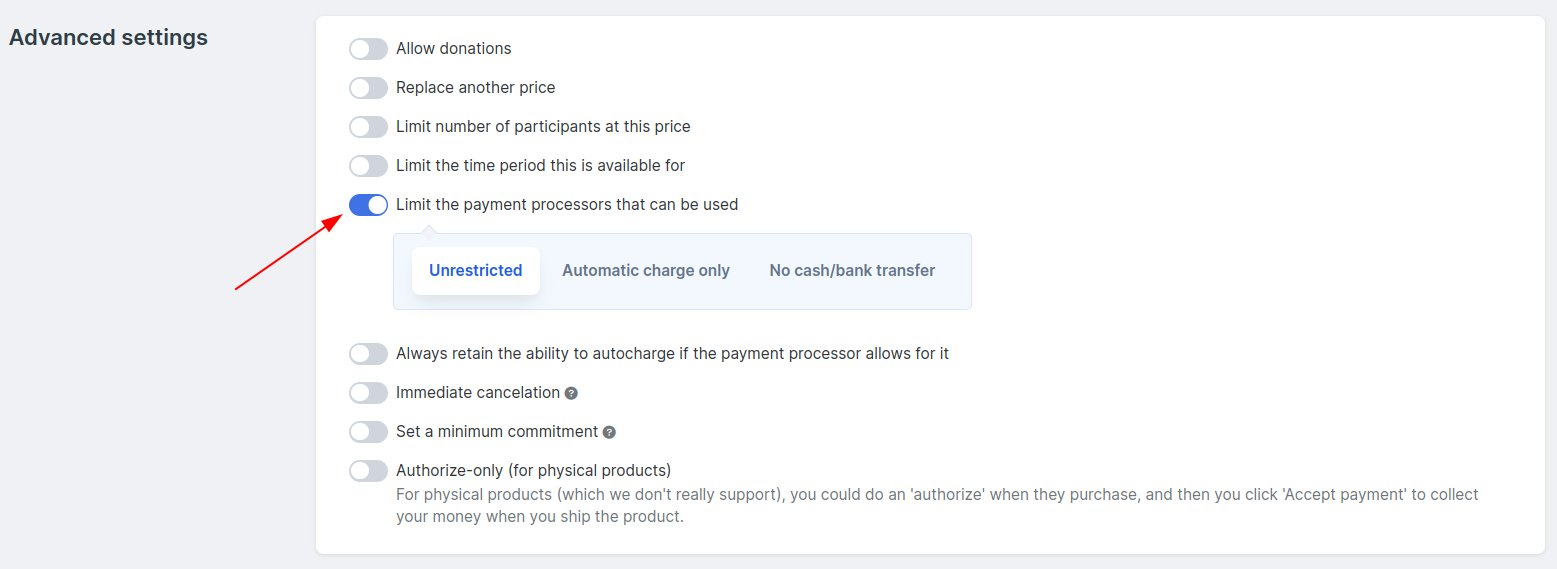
Limit the payment processors that can be used - The default Unrestricted allows all your enabled payment processors to be available to your purchaser. Learn more about payment processor options here:

Always retain the ability to autocharge if the payment processor allows for it. When this toggle is on, your payment processor will attempt to save payment information (like credit card details) to enable automatic future payments or charges without needing the customer to input their payment details again manually. This is useful for one-time charges if you want to have the option to create extra charges for your customer.
Note! Most payment processors have a limit on the amount of time that they retain the payment information. So even if you turn this toggle on, the information might disappear from Simplero after a while.Immediate cancelation - Normally cancellation is to the end of the period, unless you toggle this “on” for the price.
-
Set a minimum commitment and choose the Commitment length - The time the subscription must remain active before it can be cancelled.
For example: Each period may be 1 month, but you offer a lower monthly price in return for a 12-month commitment.
Authorize-only (for physical products) - The end-user won't see any difference in the order form. But after they press the Complete Purchase button, you (as the admin) will need to authorize the purchase before we charge them.
Minimum Quantity - Set the minimum quantity per purchase to qualify for this price.
NOTE! This option will only show up if you Allow the participant to be different from the billing contact via Product settings >> Order Form >> Options and you choose a maximum number of participants per purchase that’s more than 1:
Now go back to the price, and you’ll see this option appear:
On the order form, customers can select the number of participants they want to add to their order. We’ll show available prices based on the amount of participants selected.-
Minimum Quantity and Replace another price combo
If you use Minimum Quantity in combination with Replace another price, we’ll automatically show a Volume discount info box to encourage adding participants to the order (so they can receive a discount for it).
For the volume discount info box to show, the discount price must be available for a higher minimum of participants and at a lower amount than the price it is replacing:
The Volume discount info box is located below available prices: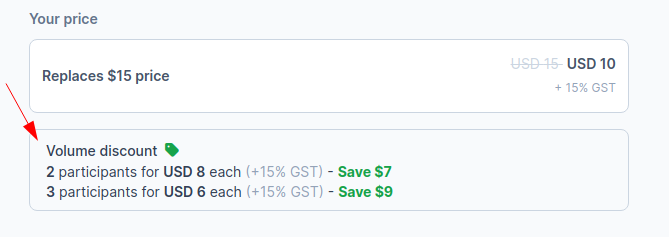
NOTE! This feature is not available for subscription prices.
Payment Options - The default "Unrestricted" allows all your enabled payment processors to be available to your purchaser. Learn more about payment processor options here.
Triggers - Save first, then you can add triggers. In this location, triggers let you do things like add tags, give access to content, or add people to lists depending on which price they purchase at.

Product variants
Included in Simplero plans: Scale and Skyrocket
Add a price for different variants, and set up specific triggers per variant:

In the content tab of your product you will be able to pick the price variant that gives access to the Product files content:

Note that variants are not reflected in any way on the customer order form. They are only designed to simplify managing content access on the admin side.
Duplicate a price
You can duplicate a price by clicking on the Duplicate icon in the price summary under Product >> Prices:

There are so many more guides about prices in Simplero! Check 'em out if you've got something more customized that you want to offer 💪
Suite 92530
New York, NY 10003
United States
