

Edit the participant of a purchase
Occasionally, you may need to edit the participant details. For example, if they’ve reached out to inform you of a typo or an update on their contact details.
Navigate to the purchase and scroll down to the Participants section.
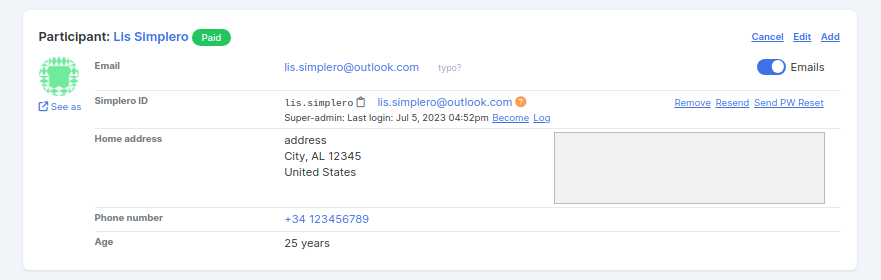
Click on the Edit link in the top right corner to access the participant page.

Add a new participant to a purchase
You can also add participants to an existing purchase. For example, if someone is signing up for multiple participants but missed adding one to their purchase, you can do that for them using the ‘Add’ link.

If the participant shouldn’t incur any further charges, you can turn on the toggle to make it free in the Payment section:
Also, use the Gift feature to send a gift message or schedule when they should be activated as a participant.

Cancel a participant on a purchase
If you have multiple participants on the same purchase and want to cancel one of them, you can use the cancel button ont he participant box:

Suite 92530
New York, NY 10003
United States
