Captions / Subtitles
Manually Add Subtitles
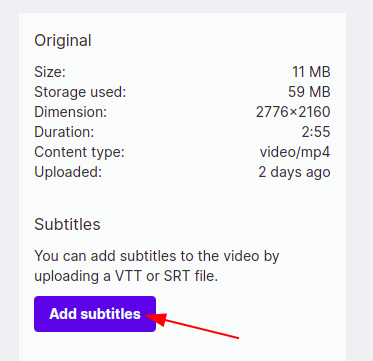
To add Subtitles to your videos, navigate to the video in your Media Library and locate the button ‘Add Subtitles’ on the right sidebar to upload the .vtt or .srt file and we will integrate them into the video for you.
Auto-generated subtitles
We offer transcripts and auto-generated subtitles in your videos. Those are limited depending on the plan you are on.
We integrate with Deepgram to generate transcripts and subtitles. Find supported languages on Deepgram’s documentation.
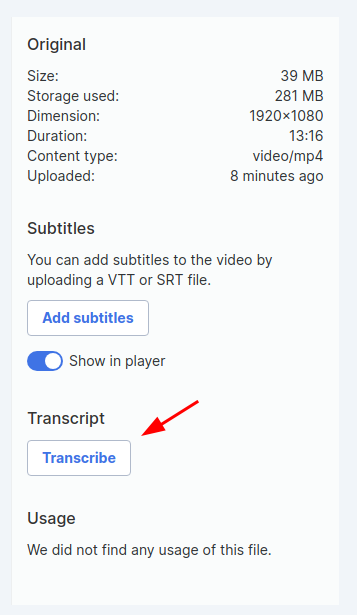
Go to the asset admin page and click on Transcribe to get the transcription and subtitles generated automatically.
Settings
If you use captions and subtitles in your videos, you can now turn them on in your Account Settings -> Media Files. Otherwise, they will be off by default.
You can also default video subtitles to on.

Correcting Errors in Auto-generated Subtitles
If there are any errors on the generated subtitles, you can download them, make the necessary edits, and replace them with the new version.
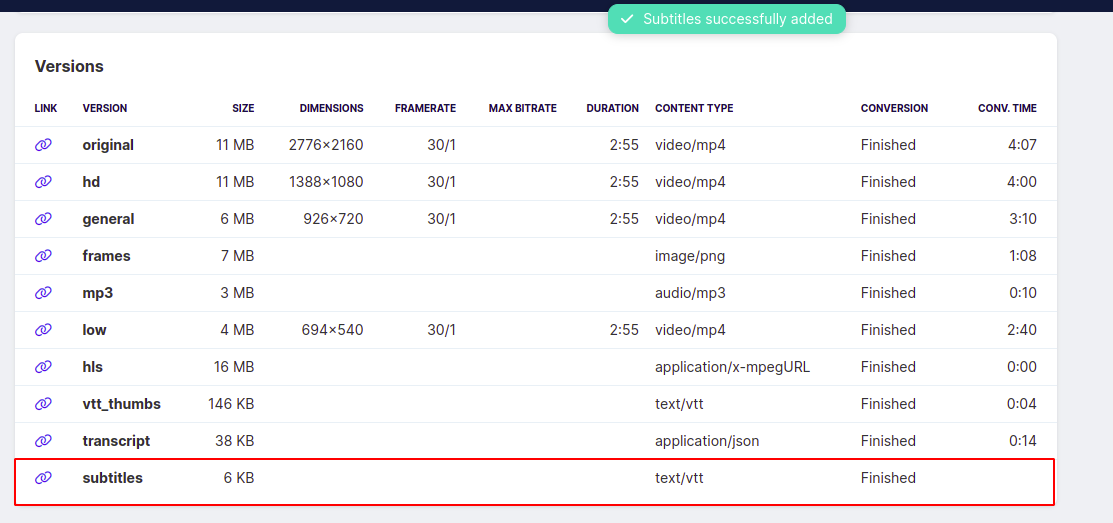
Go to the asset admin page, and scroll down to the versions table, then download the subtitles file.
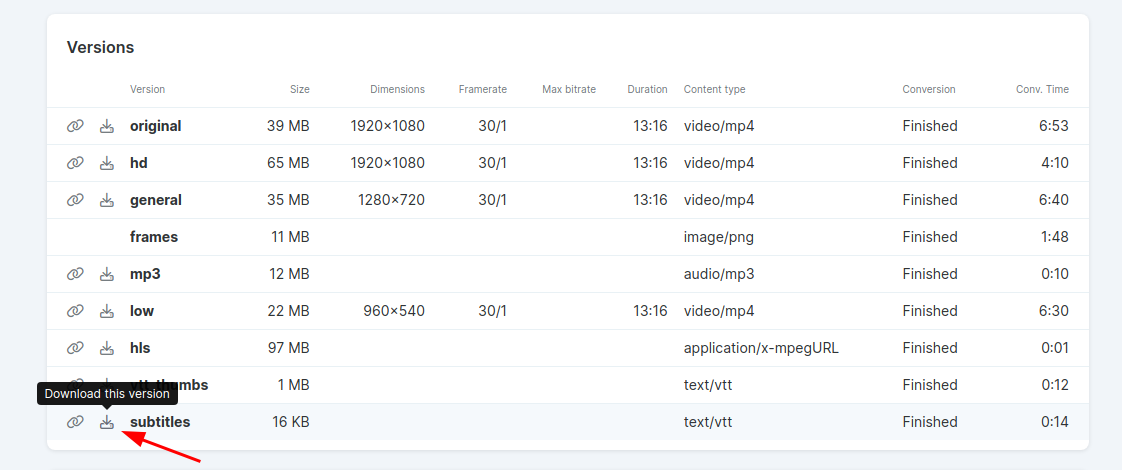
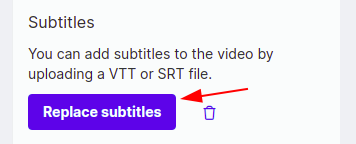
Once you’ve edited the file and saved the new version, click on Replace subtitles on the right sidebar.