Transcripts
Limited feature - AI Credits are consumed when you transcribe audio or videos.
Transcripts
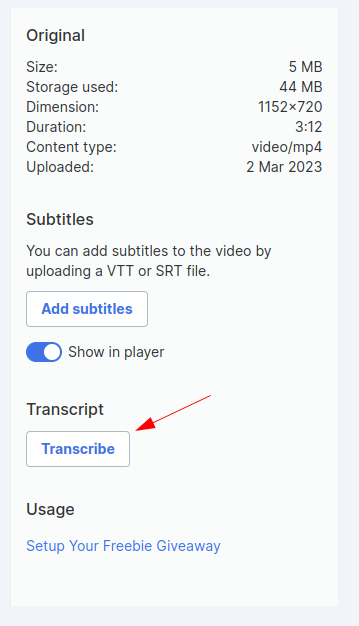
You can add transcripts to your videos and audio. You can either upload your own transcription file OR you can translate them automatically. Find the ‘Transcribe’ button on your video and audio assets page.
You can set certain parameters when you do, such as the language and if there’s more than one speaker.
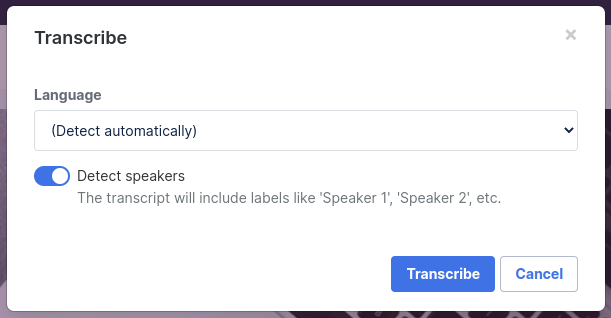
Simplero integrates with Deepgram to generate transcriptions. Supported languages can be found on Deepgram’s documentation. We use the base model.
It may take a few minutes to generate the transcript. Refresh the page to find the transcript, an auto-generated summary and list of topics, at the end of the asset page.
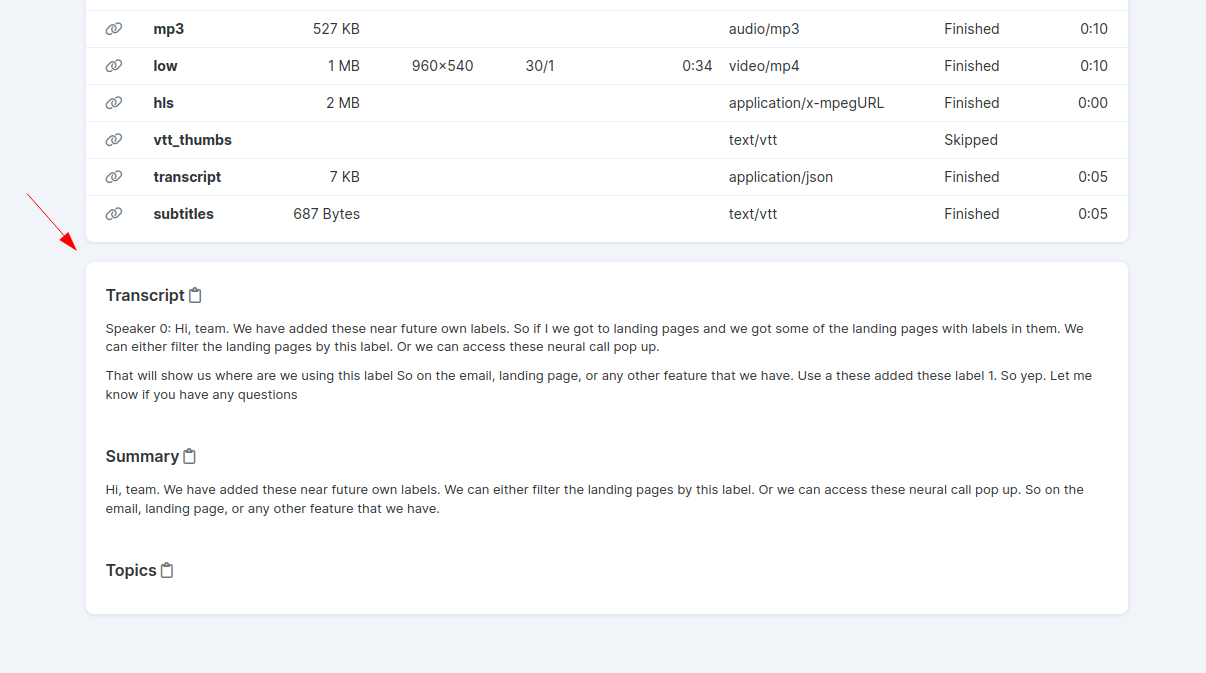
Once transcribed, you can:
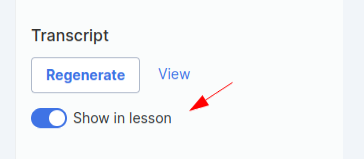
Regenerate the transcript
Choose to show or not show the transcript in the lesson
Copy the transcript

Transcripts in Lessons
Course participants will be able to:
Show video-generated transcripts in video lessons:

Follow the highlighted phrases on the transcript as the video goes on.
Click on any phrase on the transcript and we'll take them right to that spot on the video.
Check it out live here!
If you have videos or audio in the additional content section of the lesson, you have the option to see the transcript for that file as long as it is embedded. This is only available in the New Site Experience:

This will update the transcript listed on the right side of the lesson with the transcript for that file. You’re able to show the transcript of the main video or audio when you start playing the content again
Settings
If you use captions and subtitles in your videos, you can go to your Account Settings >> Media Files:

And you have the option to automatically transcribe new videos and audios:

You also have the option to:
Select a default transcription language. It will detect automatically unless you select otherwise.
Select Transcription keywords that may be uncommonly used words that are likely to be in your media assets.
Decide to show the auto-generated subtitles for the media player. This is specific to video files
Select the option to default the video subtitles to be on.

Disclaimer! Transcripts cannot be edited if they are being automatically generated. If you want to have the option to be able to edit the transcript, you’ll want to upload your own transcript file.
Keywords are also not 100% accurate. In those cases where the transcript is not as accurate as you would expect it to be, you can turn them On/Off at the video level on the right side-bar: Show in player and Show in lesson.