

How to Install Google Analytics Tracking Code
In this guide, we will explain the steps to install Google Analytics on your Simplero website, membership site, and course pages so you can view the traffic (and other data points) for visitors.
The easiest way to do this is to use our Google Tag Manager Integration. See the manual here. It is more user-friendly and easier to install.
If you prefer to install it yourself, you can follow the steps below.
If you already have a Google Analytics account for the domain you want to track, skip to step 3.
Step 1- Setup Your Google Analytics Account
Step 2 - Click "Create New Property" in Google Analytics.
Select Web Traffic. Then enter all your website details.
Step 3 - Embed the Code Into Simplero
Copy the website tracking code from Google Analytics. Here's How to Find Your Google Analytics Tracking ID.
Select the Settings gear icon from the top right corner of your Simplero Dashboard.
Choose the Tracking Tab
Insert the tracking code:
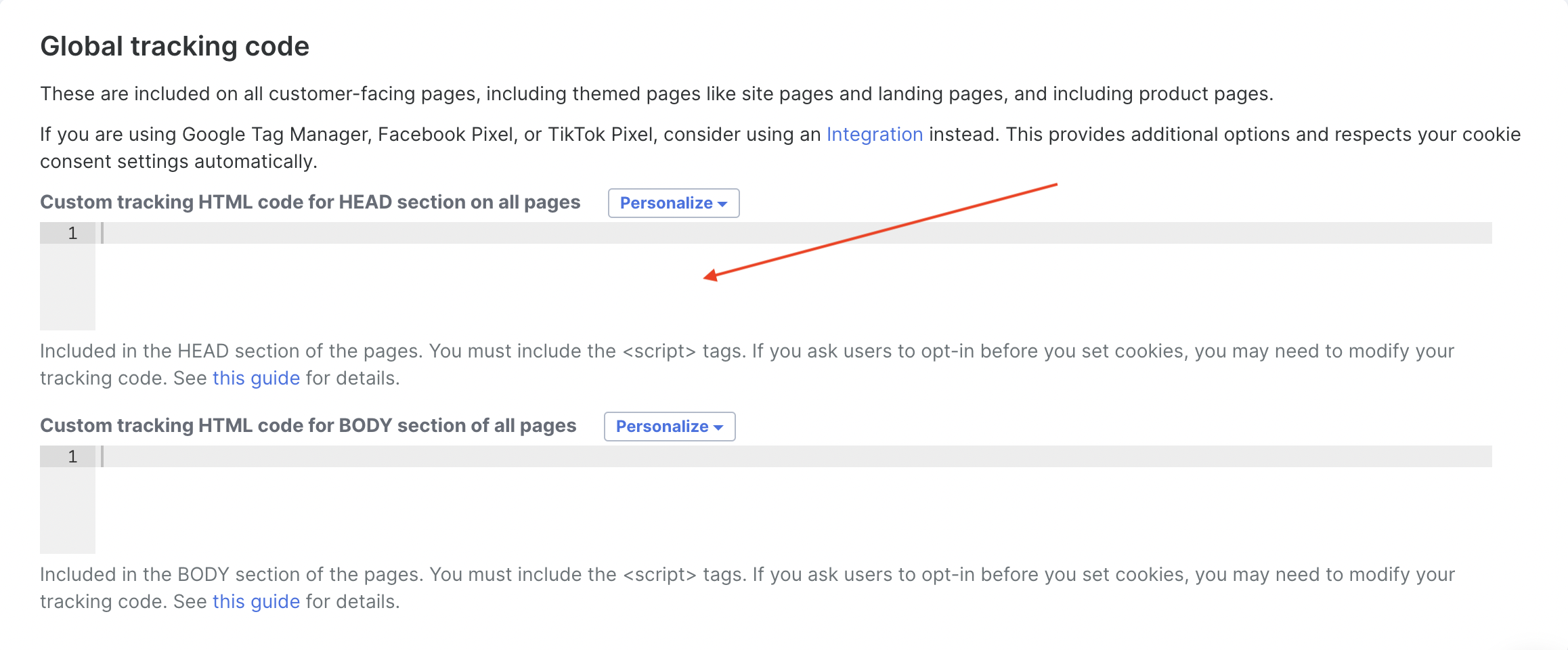
That's it! You're now tracking visitors to your website, membership site, products, all pages. You can view the data back in analytics.google.com.
Should I put the tracking code in the header or body?
Header Placement
Loading Timing: Placing the tracking code in the <head> section of your HTML document, typically just before the closing </head> tag, ensures that it is loaded early in the page loading process. This means it is among the first resources to be fetched by the user's browser when they visit your website.
Benefits: Header placement ensures that the tracking code is loaded before any page content, which can provide more accurate data on user interactions, pageviews, and initial session data. It is suitable for tracking general user behaviour and pageviews.
Drawbacks: While loading early has advantages, it can also lead to a slight delay in displaying page content to the user, especially if the Google Analytics server experiences delays. This can result in a small performance hit for the user.
Body Placement
Loading Timing: Placing the tracking code at the bottom of the <body> section, just before the closing </body> tag, loads the tracking code after the page content. This prioritizes loading the visible content of the webpage before the tracking code.
Benefits: By placing the code in the body, you prioritize a smoother and faster user experience because the page content appears more quickly. Users can start interacting with your site without waiting for tracking scripts to load.
Drawbacks: Tracking code placed in the body may capture fewer initial user interactions, especially if visitors navigate away quickly. This can potentially lead to slight underreporting of pageviews and session data in Google Analytics.
How to enable e-commerce tracking?
Sign in to your Google Analytics account with your username and password.
Click Admin on the bottom right of your screen.
Go to the View column.
Find E-commerce settings from the list.
Toggle the Enable E-commerce to on.
Press save and return to the main screen.
Any questions? Shoot our support team a message at support@simplero.com and we’ve got you covered 💪
