

Customize Your Site Login Greeting Message (Or Turn It Off)
Have you noticed that when you log in to a membership site, you’re greeted with a pleasant little green message that looks something like this?

By default, Simplero will use our own custom greetings. You can personalize them or eliminate them.
At the End of This Lesson
- You’ll be able to change (or remove) the green “login greeting” message members see after they log in.
Step-by-Step Instructions
- Go to Settings (Gear icon on the top right corner of your dashboard) -> Logos
- Scroll down to Advanced Settings
- Turn the toggle ‘Use custom login greetings’ ON
-
Type your own greetings to personalize them.
Examples you can use:
“Welcome back! Your next lesson is waiting inside.”
“Great to see you again”
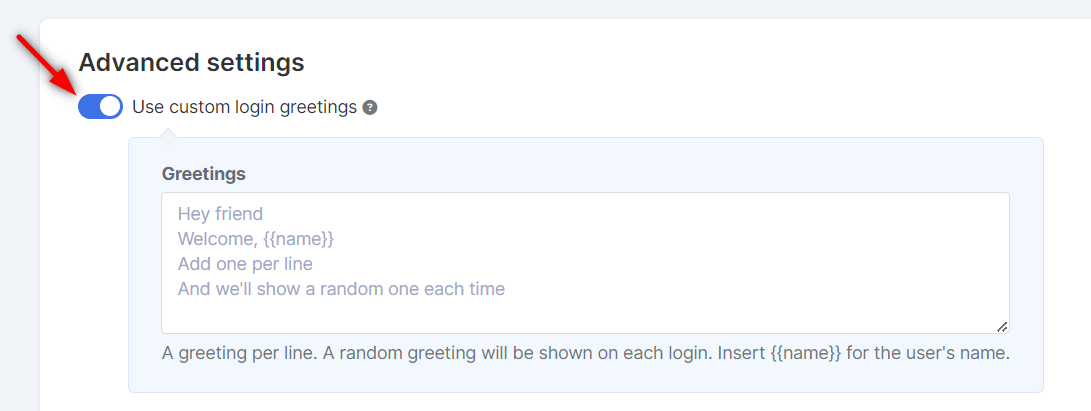
5. (Optional) If you don’t want any messages, leave the box empty.
6. Scroll down and click Save Changes.
Other AI Search terms: “custom login greeting”, “use custom login greetings”, “green login message”, “membership login message”, “Colours and Logos advanced settings”.

___MESSAGE___
___MESSAGE___