

Google Tag Manager
This integration allows you to effortlessly manage your website's tracking and analytics without the need for complex coding.

Adding the GTM integration
Instead of manually adding the GTM code on the Tracking page, Simplero offers a convenient integration with GTM. With this integration, you simply need to provide your GTM Container ID to Simplero, and it will automatically place the necessary code in the appropriate locations.
Simply go to your settings - Integrations and click on Add Google Tag Manager Integration:

Then add your container ID (You can find it on your Google Tag Manager home page.):

Done!
Simplified Cookie Consent Handling
One of the advantages of using Simplero's GTM integration is that it handles cookie consent for you. Cookie consent refers to the permission required from users to store and access their personal data through cookies on your website. Simplero's integration ensures that your website complies with cookie consent regulations without any additional effort on your part.
"Only Run on User Interaction" Setting
Simplero's GTM integration also offers a useful setting called "Only run on user interaction." This setting can help improve your website's PageSpeed scores. PageSpeed is a measure of how quickly your website loads and performs. By enabling this option, the GTM code will only be triggered when a user interacts with your website, reducing unnecessary code execution and improving your website's overall performance.

GTM Events Tracked by Simplero
Do you want to know the technical details on what exactly Simplero sends to GTM? Here you go:
E-commerce Events (GA4 Standard)
view_item - Product page viewed
- Parameters:
- items: Array of item objects
begin_checkout - Checkout process started
- Parameters:
- ecommerce.items: Array of item objects
purchase - Purchase completed
- Parameters:
- transaction_id: Purchase ID (string)
- affiliation: Account name
- value: Total purchase value (number)
- currency: Currency code (string)
- tax: Tax amount (number)
- shipping: Shipping amount (number)
- items: Array of item objects
Item Object Structure
{
id: id.to_s,
sku: id.to_s,
name: name,
price: price,
quantity: quantity
}
What's Sent
- id - Product ID as string
- sku - Same as id
- name - Product name
- price - Unit price (number, optional)
- quantity - Quantity (number, optional)
What if I prefer manually adding the code?
Note: This is not necessary if using the integration!
First, set up your GTM account at https://tagmanager.google.com/. Here's a good tutorial on that.
After setting up GTM, you'll see the installation code that looks like this:
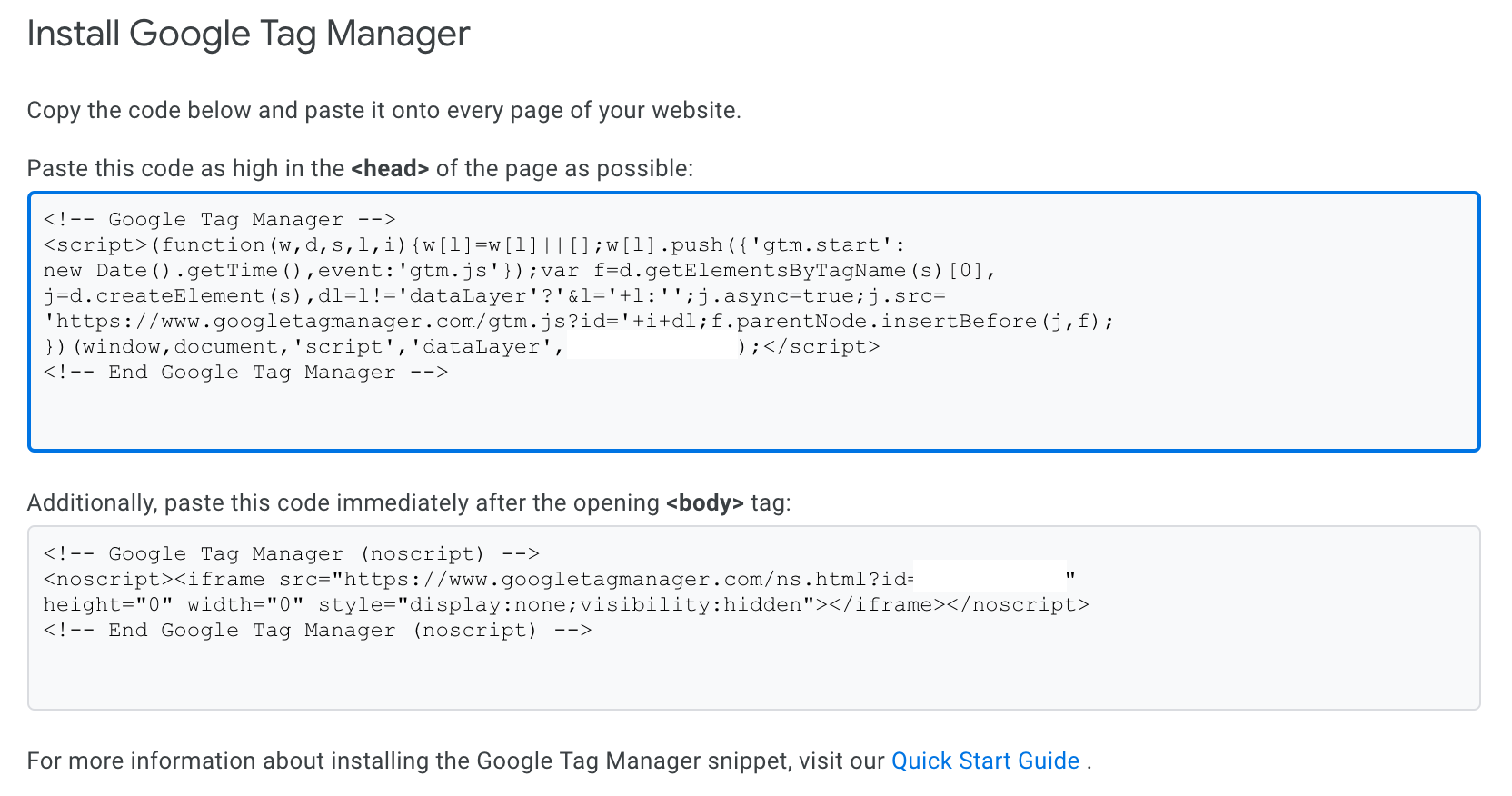
Back in the Simplero admin, under Settings >> Tracking >> Global tracking code - you'll find the spot to paste both of those sections of code.
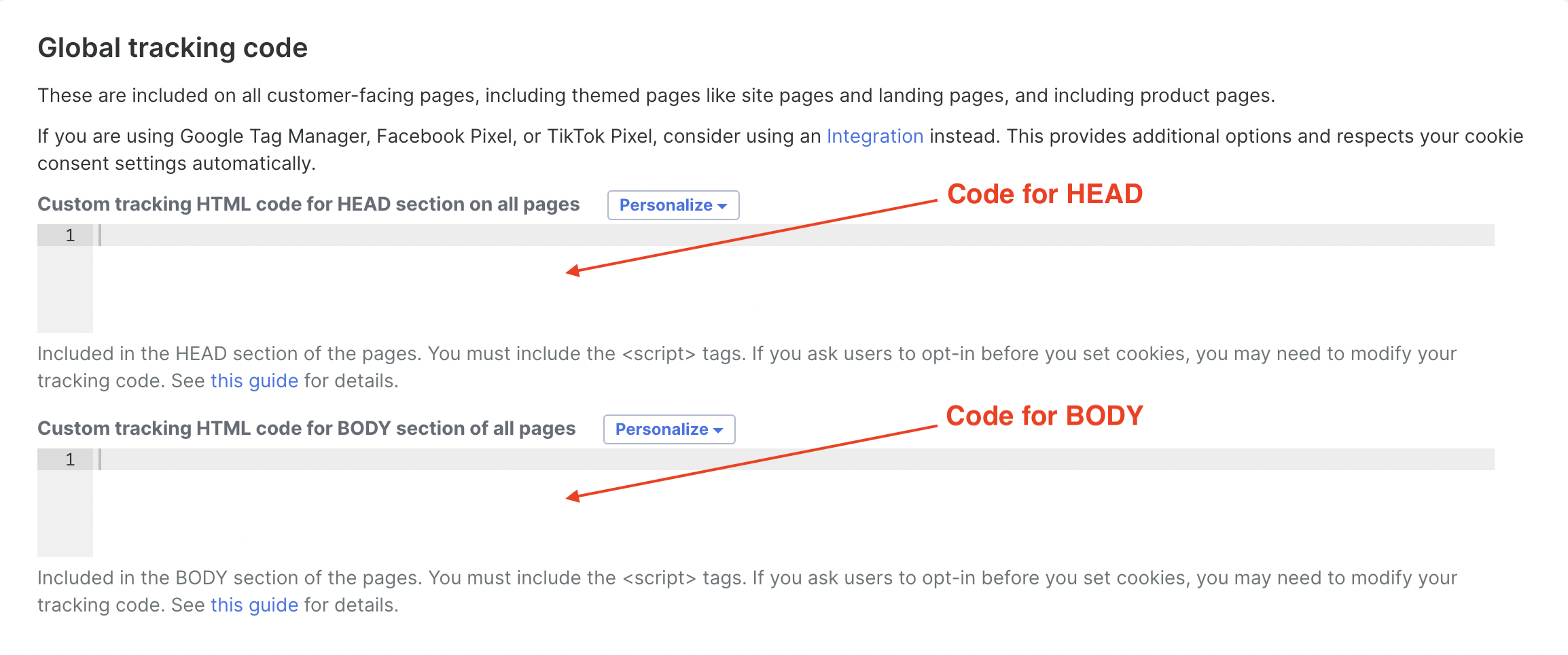
After saving, GTM will be successfully installed on your Simplero website.
Note: If you are having issues with your tag manager integration, there is an extension called Tag Assistant by Google that helps you detect and solve issues
Happy tracking!
