

Embed Content Using HTML or a Script Section
At the End of This Lesson
You can embed third-party content into emails, course content, site pages, or landing pages using either the HTML editor or a Script section.
Before You Start
-
Your Simplero account is active (embedding is not available during a trial for security reasons).
-
You have the embed code provided by the third-party service.
-
You have access to edit the email, course, site page, or landing page where you want to add the content.
In This Guide
Embedding Content using the Source Code Button
You can embed content in a content box in most places across Simplero: Email body, body content in a course, the text box on a Legacy landing or site page.
You can do this in the WYSIWYG editor.
-
Click the HTML button located in the upper right corner of the toolbar, the last button the looks like "< >"

-
The Source code screen will open
-
Paste the embedded code where you want it
-
Click the blue Ok button when done and you will be switched back to WYSIWYG mode
HTML Element on a 2.0 Builder Page
You can add HTML code onto a 2.0 Builder page using an HTML element.
-
Open the page of your choosing or create a new page.
-
Add an HTML element

-
On the right sidebar, add your HTML code.
-
Publish your changes
(Deprecated) Script section in the Legacy Editor
When adding a script on a Site or Landing Page, you'll be able to add a Script section instead of using the WYSIWYG editor.
-
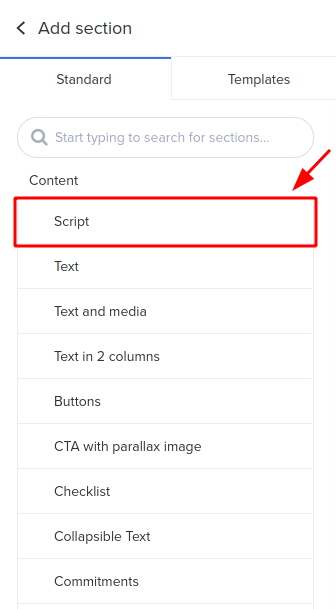
Add a new section and select Script
-
Add the Javascript or HTML code in to the script section
-
Save your changes
Troubleshooting
-
The HTML button isn't available.
-
Make sure your account is no longer in the trial period. Embedding is disabled during trials for security reasons.
-
-
The embedded content doesn't appear or doesn't work correctly.
-
Some embed codes may conflict with Simplero or with other scripts on the page. If this happens, test the embed in a different location or check with the provider of the embed code.
-
You're Done When...
-
The embedded content appears in the desired location.
-
The content loads and functions as expected after publishing or previewing the page.
