

Editing Images
We've added the Image editor, which is part of the new WYSIWYG editor. It's a neat little feature to make your life a little easier when creating content.
Here's how to use it:
-
Add an image using the toolbar in the text editor.

If you use the legacy editor, it would look like this:

-
Select the image
-
Click the "Image editor" button shown on the center of the image.

This will bring up the Image Editor UI.
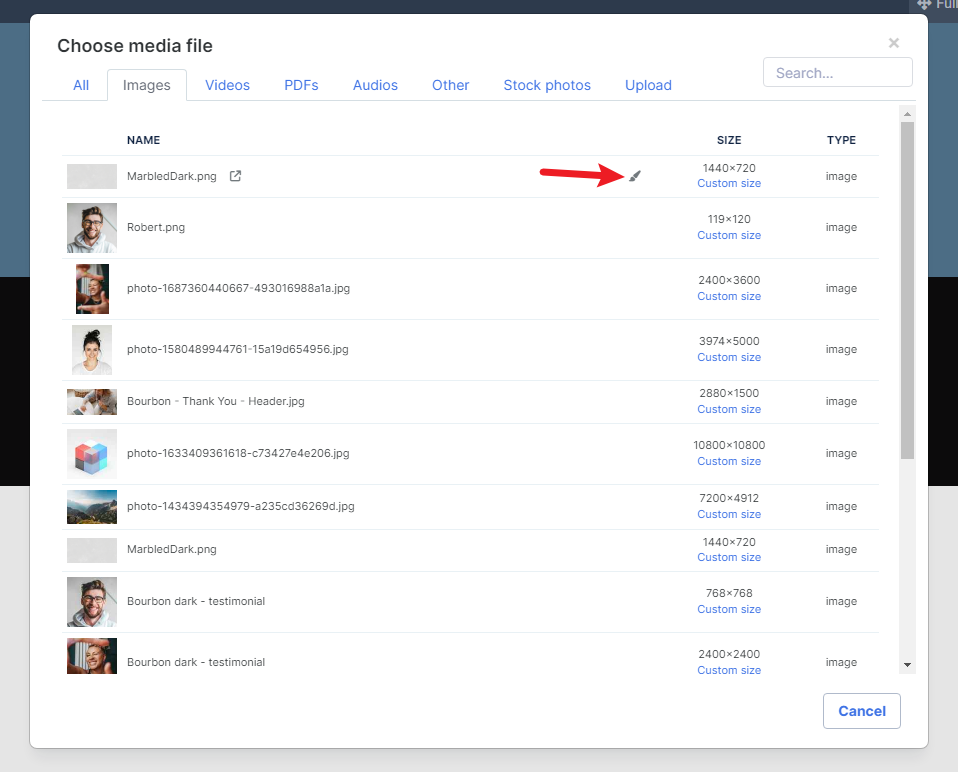
Alternatively, you can also edit your images from the media file picker. Hover over the file you’d like to edit and then select the paintbrush icon.
You can now easily make your images pop without going through the hassle of finding and using a desktop image editor. The Image Editor allows you to make a wide range of changes to your images, from adjusting the contrast to applying filters.
Apply Filters:

Crop it

Adjust the color settings for the image:

Focus

Add a Frame

Apply an overlay

Add text directly on the image

Add special formatted text

Add Stickers

Use the paint brush to draw directly on the image

