


Favorite Lessons and Playlists
In this guide...
Favorite Lessons
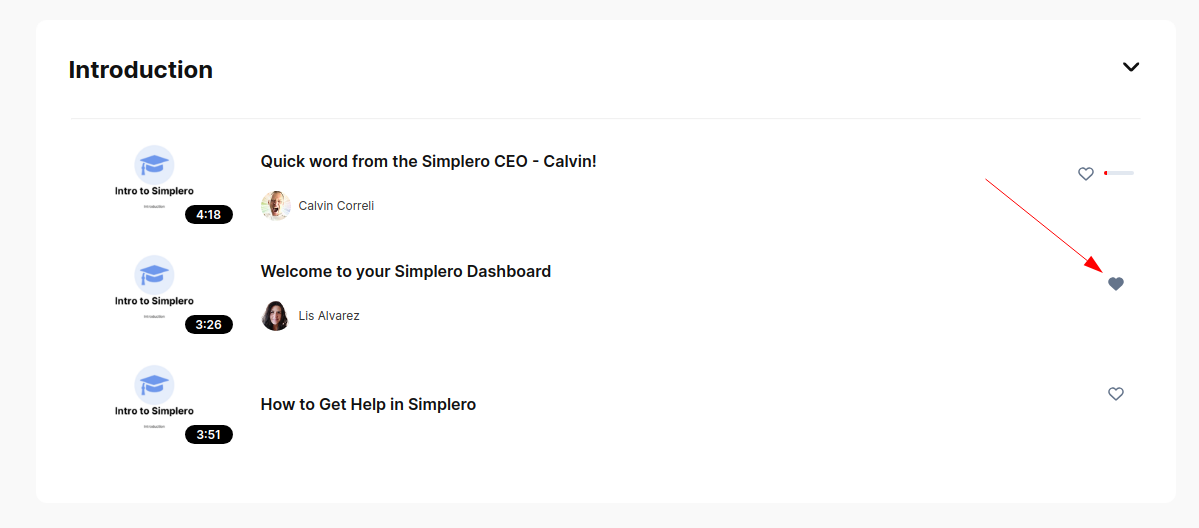
Save your favorite lessons to be able to access them in one click!
Navigate to the course overview and click on the heart icon next to the lesson name 🖤
To find lessons you’ve saved as favorites under your profile menu in the top right corner:
- Go to the vendor's site
-
Click on the profile picture on the top right side and then Your dashboard

- Then click on favorites

Playlists
Playlists in Simplero allow you to organize and save your favorite content in a structured way.
To add a lesson to a playlist, click on the playlist icon next to the lesson. Then choose if you want to add it to an existing playlist or if you wish to create a new one:

To find your playlists...
- Go to the vendor's site
-
Click on the profile picture on the top right side and then Your dashboard
- Click on Playlists

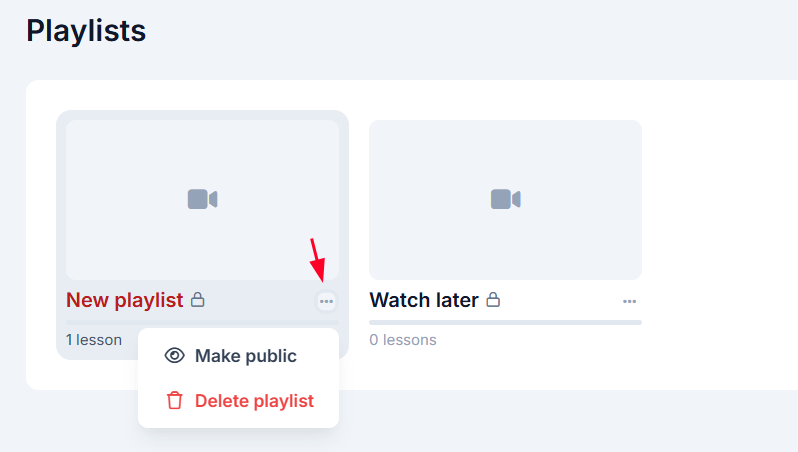
Click the three dots next to the playlist to make it public or delete the playlist.
Warning! A public playlist will show for all the members of the site
Change the Playlist Name
- Click on the Playlist
- On the right hand site, hover over the name of the playlist and click the edit pencil icon:

Reorder lessons in your playlist
You can change the order of lessons in any playlist you own.
- Click on the Playlist
- Hover over a lesson and grab the handle on the right side, then drag it up or down. The new order saves instantly.

