

[Spaces] Adding a Home Link to the Navigation Menu in Spaces (Deprecated)

The above image is the navigation menu that your customers see when they are in one of your spaces.
- It allows your customers to see your product catalog (directing them to products they hopefully will choose to purchase).
- They can secondly, access other spaces they have access to from you including any open/free spaces you offer.
- The third option is to access their account (see their purchases, subscriptions, etc.).
But did you know that you can offer a 4th option to them?
Maybe you'd like them to have a direct link to your website or blog. Below are the instructions on how to do it.
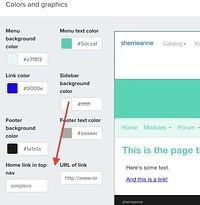
- Go to Colors and graphics under the Settings in your navigation menu
- Locate the second section of options and find the box labeled "Home link in top nav"
- Give your link a label
- Locate the box next to it labeled "URL of link" and paste in the URL of where you want them to go
- Save
Now when you view your space you will see these new link available.


___MESSAGE___
___MESSAGE___