

[Spaces] Space and Space Page Access (deprecated)
How Space Access Really Works
Getting Access
In order to determine whether someone has access to a Space, we go through several different options.
- First, if they have an active purchase of a product, or an active subscription to a list, where that space is added under Content, they'll have access.
- Second, if they're admins on the account, or they've been granted staff privileges in the space, they're in
- Third, if they have been granted explicit access to the space, either by manually adding the space on their contact page, or through an action via a trigger, an automation, or directly on a segment, they're in.
If anyone of those conditions is met, they'll get access to the space.
Revoking Access
You can revoke each one of these, and they'll have different consequences.
- Removing the Space from the content for the List or Product will remove it for all who are on that list or product.
- Unsubscribing a contact from a list, or canceling their purchase of a product that gives access to that space, will affect just that contact, but will have other consequences, like no longer getting emails to that list or product.
- Removing them as admins on your account or revoking their staff privileges in the space will obviously remove them as admins or revoke their staff privileges.
- Using the "Revoke access to space" action will only remove any directly granted access, ie. if they have access through a list or a product, they'll still have access, regardless.
Grant Access and Revoke Access
These respectively set or remove any explicitly granted permission for this particular contact on this particular space.
If the contact in question has access some other way, it's not going to make any difference whether you grant or revoke these.
Only in the future, if they lose access through, say, a product, then the fact that they still have been explicitly granted permission would come into play
Space visibility options

There are 3 options for Spaces access.
Closed Spaces, require everyone who has access to purchase a product from you or sign up for a list with you. They have to give you their information and in turn, they are supplied with access and a Simplero ID.
Then you have two options for an Open Space. An Open Space means that anyone who has the URL will have access. The URL can be shared via social media, an email, text message. Also if they are a current customer with access to one of your other spaces (closed or open) they will see all your open spaces listed as available to them.

Your 2 options in an Open Space are:
- That they create a Simplero ID this would require them to be registered with Simplero
- That they don't have to log in at all. Meaning the Space would be truly open to anyone and they don't have to register with you or with Simplero.
Giving Access
Site Access to a Product or List
- Locate the list(s) or product(s) you want to give the site to.
- Select on the Content tab within the list.
- Scroll to the "Site" section about 1/2 way down
- Select the Connect to existing site button
- Select Site
- Save
Access to a single contact
- Search for the Contact in your database
- Click on their name
- Scroll about 3/4 of the way down to the box showing the spaces they have access to.
- Click on the red hyperlink that says "Add a site"
- Select the site you want them to have access to
- If there are any pages on auto-publish in the site you will now need to to do that. That can be done via an automation, broadcast, or simply select the manage access button next to the site in this same screen and select the pages.
Access via a Trigger or Automation
- Add a trigger where you want or create a new step in your automation
- Select Action
- Choose Give access to a space then select the site
Manual Access
Do you want to give a contact access to a space without having them register for a product or list?
- Search for contact in your database
- Click on their name
- Scroll about 3/4 of the way down to the box showing the spaces they have access to.

- Click on the red hyperlink that says "Add a space"
- Select the space you want them to have access to
- If there are any pages on auto-publish in the space you will now need to give them access to those. That can be done via an automation, broadcast, or simply select the manage access button next to the space in this same screen and select the pages.
Removing Access for a Space
Removing access to a single contact
- Search for the contact in your database
- Click on their name
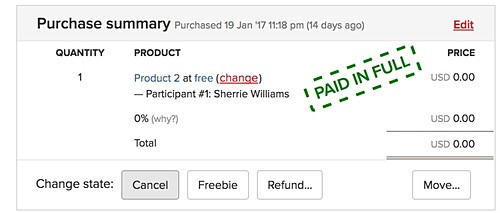
- Find the product where they have access to the space
- Cancel their purchase
Removing an entire product's Access
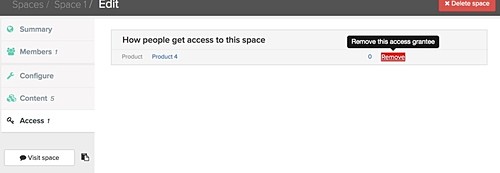
- Go to the space you want to remove access for
- Click on the access tab
- Find the product name listed
- Select the red remove button next to it
Removing Access via a Trigger/Automation
- You can also set a trigger or a line in an automation that says to remove access to a space, should you want to do that.
Managing access within a space
Do you have a customer emailing you saying they can't view a page they should have access to? Or maybe you just want to verify that someone has or doesn't have access to a specific auto-published page. There is a way to do that!
- Search for the person in your Simplero
- Scroll about 1/2 way down until you reach the space access box, for questions about page access go to step 4, for questions about space access go to step 3.

- If you are looking to verify which spaces they have access to and how you can see this in the box directly. The through column shows you how they got the access. If access was given via a product you will see that product listed. If access was given manually or through an automation or trigger to a segment it will say Directly.
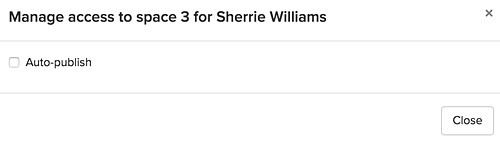
- Locate the manage access link next to the space and a pop up will appear with the auto-publish pages. Pages which a check mark next to them is viewable by that contact. Pages without a checkmark are not viewable by the customer.
Restricting Access within a Space
Why would you want to restrict access?
Restricting access to a page allows you to set up a single membership site and connect it to multiple products. For example, if you run a mastermind each year you can then have one mastermind space with all the content as the content itself is evergreen and used season after season. But then you can have a page(s) in the space that has restricted access where you can post call replays. Giving each mastermind group the privacy they are expecting.
How would you restrict access?
Each published page in a space can be restricted in two ways.
- A page can be published in a space but only viewable by specific Products.
- Select a page in your space
- Go to the settings tab on the page
- Scroll down to the section titled "Who should have access to this page?" Note if the page is not set to published you will not see this option.
- Select the option "Only available to customers who purchased the following product(s)"
- Select the product(s) you linked to the space
- Repeat all the steps above for each page that is paid content not being auto-published
You can also use Auto-Publish. That means the page is only accessible to people that have been expressly released to, either manually, through an email broadcast or a trigger of some kind within your simplero. This option is great if you want to control the timing of when a product receives access to a page or if you don't want to give access to everyone within a product or list.
- One thing to note is access requires access to the parent page.
- What this means is that access to a subpage is also restricted by the "parent" page. So if you have pages like this:
- Modules > Module 1 > Part 1
- Then a customer will only be able to get to the page "Part 1" if they also have access to the "Module 1" and "Modules" pages.
- What this means is that access to a subpage is also restricted by the "parent" page. So if you have pages like this:
