

[Spaces] Space FAQ (deprecated)
What is a Space?
A Space is also known as a 'zenlearn forum'. For example, 'zenlearn space' or 'virtual space', 'online space', or 'virtual classroom' - many names, same thing.
It's a closed website, where your customers can access Content such as video, audio, PDF, etc. - that you provide for them, as well as a discussion forum (if you let them have one), and a list of other members.
It's sort of like a simple Facebook Group that you control.
You can associate a product with a Space, such that people who purchase that product automatically get access to the Space. This is how an online course is delivered, but you can also use it as an add-on to a webinar course or a physical course or seminar.
You can have multiple products associated with the same Space. This is useful if they're different classes for the same course, so they should have access to the same content and the same forums. It's also useful if you have different levels of the same basic product - a basic version and a deluxe version, which gives access to additional content and features.
Within a Space you can differentiate access based on which products they have bought to gain access, allowing you to differentiate between classes or levels of a product.
Where are my Members for mySpace?
I know it can look strange that you have fewer participants/members showing up in your Members tab than who have access to the Space but don't worry!
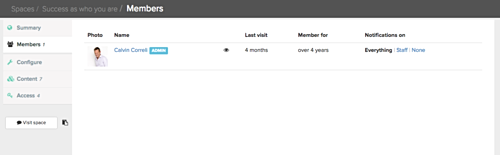
It's simply because they haven't visited the Space yet. Once your participant has visited the space for the first time, their name will appear in the Members tab.
It doesn't mean they don't have access to the Space, it's simply because they haven't visited the Space yet.
How much can I customize the look & feel of my Space?
The basic structure of a Space is set. There's a header, there's a menu with drop-downs, and there's a sidebar on the right which contains navigation and other tools.
This is all framed and set on a background.
- You can customize the background to be either a color or one of many many patterns.
- You can customize the fonts and colors inside the Space.
- You can upload a horizontal header graphic, or you can upload a logo and leave the rest of the header as text, in a font and color of your choosing.
- You can obviously customize the content.
If you want to go further in customizing the look of your Spaces, you can add your own custom CSS. For this, you obviously need someone who knows CSS, but it's not too complicated. You also run the risk that we may change things in the backend software which ends up messing with your customizations, but that typically doesn't happen too often, and can usually be fixed easily.
How do you customize this?
- Select Settings from your Simplero Dashboard
- Select the Colors and graphics
How do your Customers get a Login to the Space
After the purchase has been activated, we look at each participant in turn.
If the participant has the same email as the currently logged in user, we do nothing. They're already logged in, and we assume they know what they're doing.
If we already have a user account with that email address, we'll send the person an email which tells them the username to use, and that they have previously chosen the password themselves. And if they've forgotten, they can click into the site and find help.
If we don't have any user with that email, we'll create one with a username generated from their email, and a new autogenerated password. Then we'll send the user an email with both the username and the password. When they log in the first time, we'll ask them to choose their own password, and to change the username and other info if they wish.
In either case, the email contains a link to the Space in question and mentions both the product they purchased and the name of your account as the vendor.
The goal is to make the process as intuitive and frictionless as possible for the customer, so we don't bother them with unnecessary stuff during the checkout process, yet make sure they have a login.
Similar when a list is giving access to a Space, or you grant access using a Trigger or an Automation.
How Notifications in Spaces Work
The members of the space have the option of getting email notifications about
- All activity: New posts and new comments on pages and posts
- Staff activity: Same as above, but only when written by a staff member
- None: No notification
Regardless of that setting, they can also "Follow" individual pages and posts. If they're following a page or post, they'll get email notifications about each comment on that page or post.
When you comment on a post or page, you're automatically following it. You can manage your notification and follow settings by following the link at the bottom of each email.
In the settings for your Space, you can choose the default notification setting (All / Staff / None) for new members. This will not affect existing members.
You can override the setting for existing members under Members inside your Space.
