



Organize Your Account Using Labels
Labels help you organize and find content across your Simplero account. They can be used within different features such as media files, products, and landing pages.
At The End of This Lesson
You'll be able to create labels, apply them to your content, and use them to quickly filter and organize items in Simplero.
In This Lesson
Creating Labels
Go to Settings —> Labels
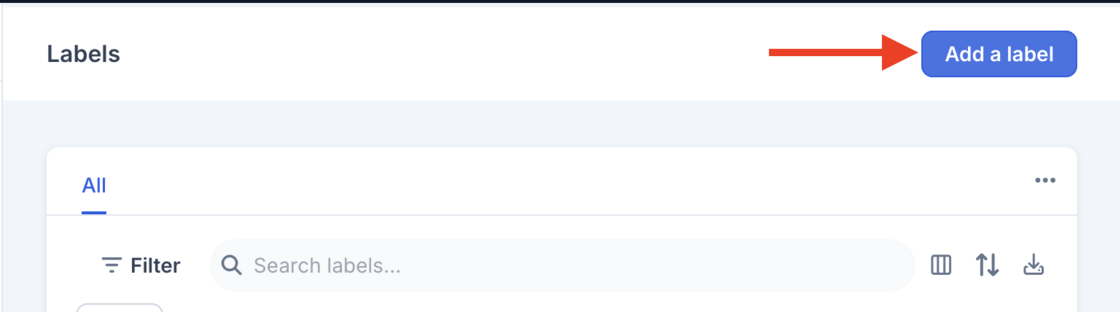
Click on Add a label
Enter a name for the label and choose a label color.
Click Save
Repeat steps 2–4 to create additional labels.
Adding a label to your content
Go to the feature you are going to add the label too.
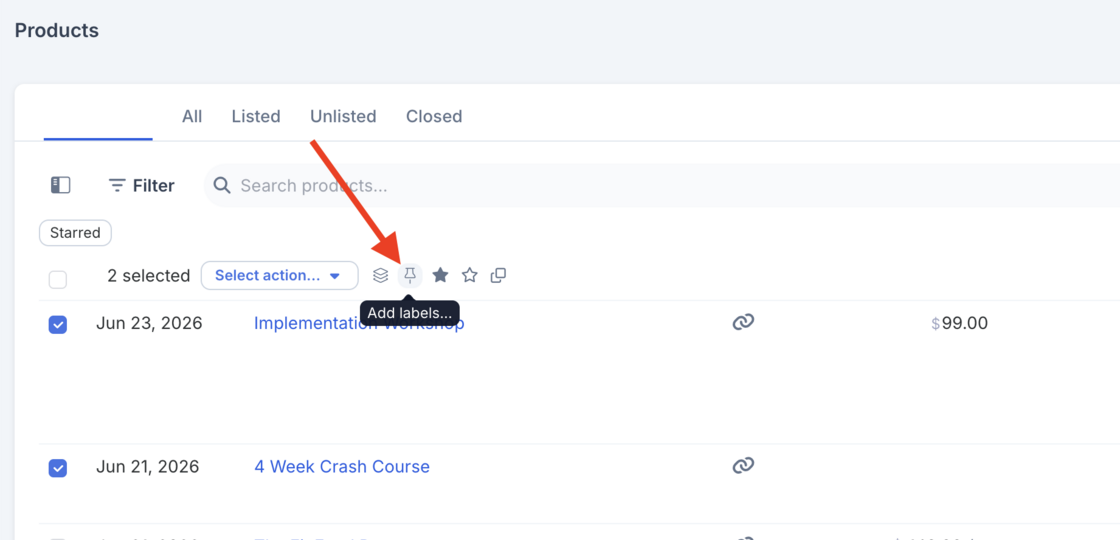
Select the checkbox next to the item you want to label.
Click the Label icon.
Enter the name of an existing label or create a new one.
Click Add Label
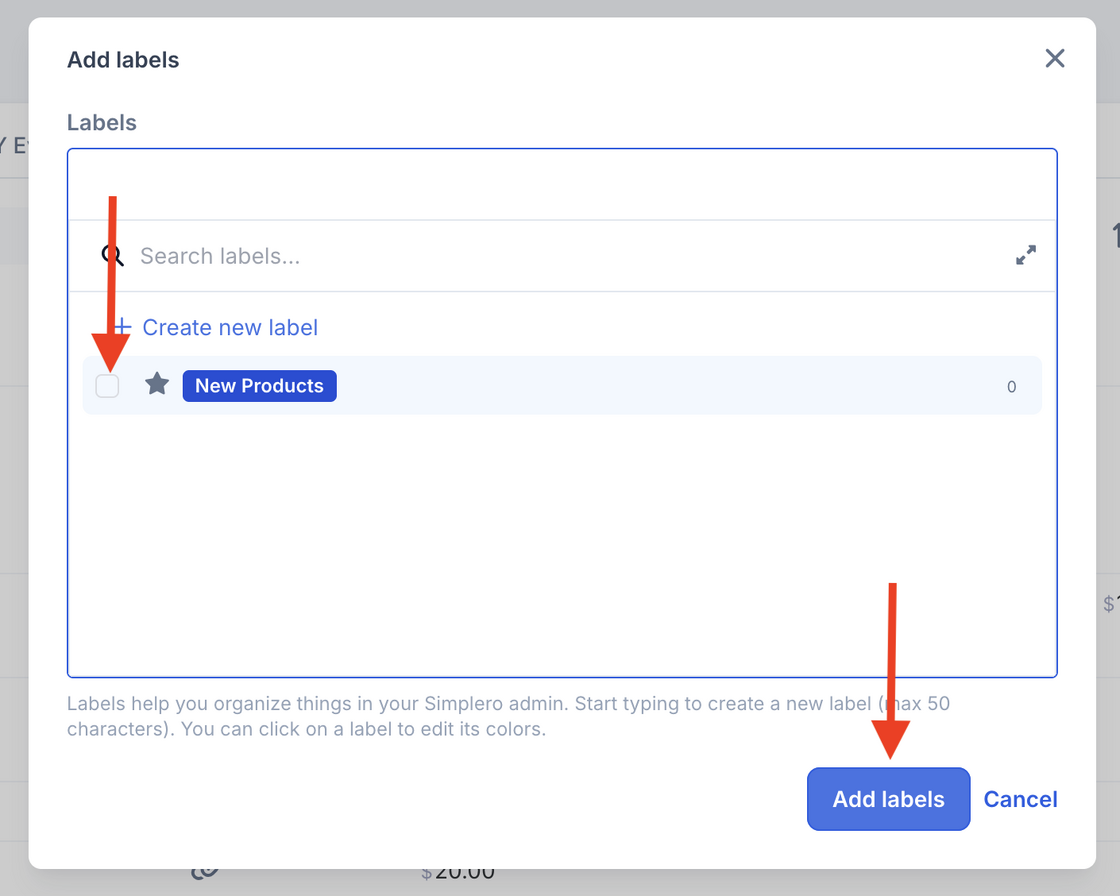
Note: You can assign multiple labels to the same item.
Use your labels to create tabs
You can use your labels to filter your content and sort them in tabs. Kind of like having your content in a folder on your computer. This will give you easy access to the content you are working on.
For example:
Go to Sales —> Products
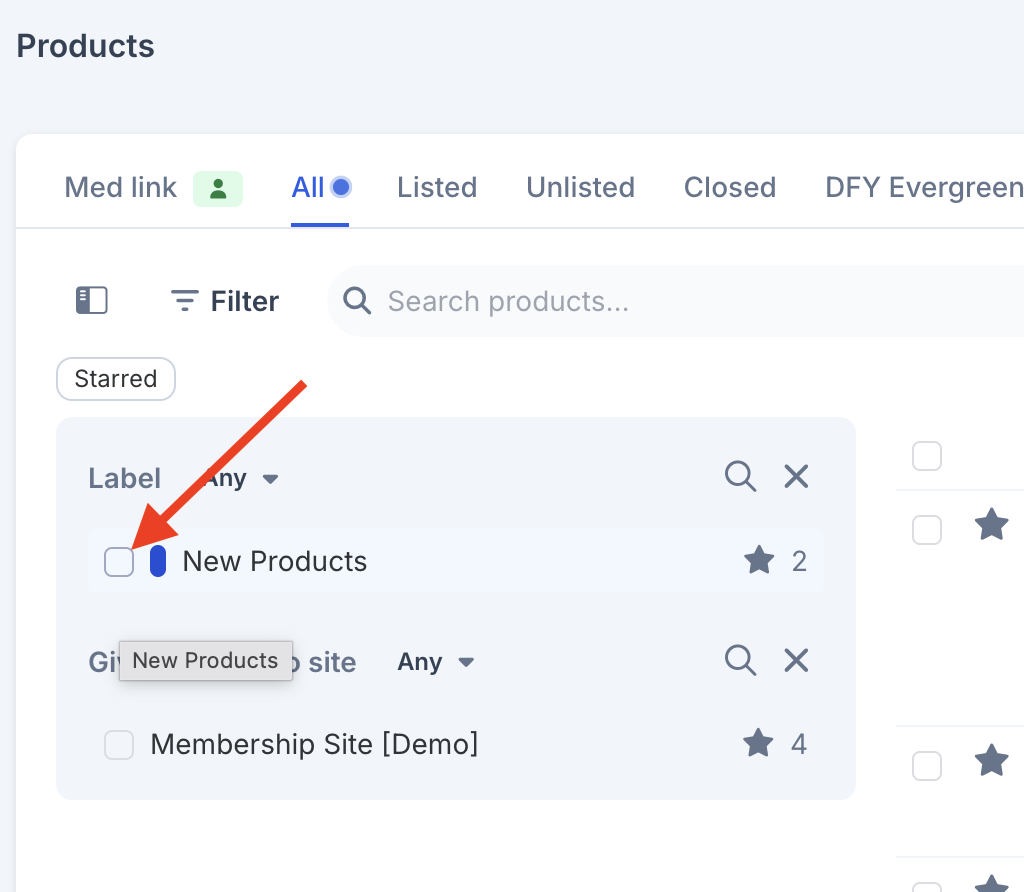
Click on Filter
Select Label from the drop-down list
Select the label name you want to filter by
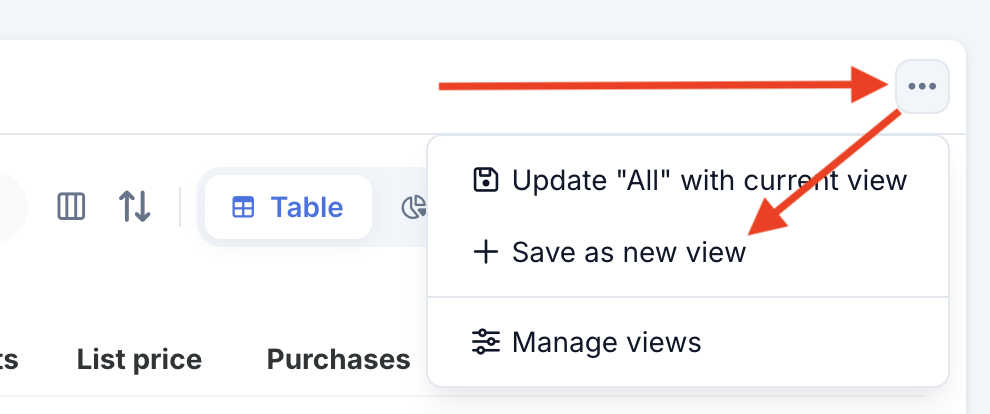
Click on the three dots menu to find the Save as new view option create a new tab in the table
You're Done When...
You have created one or more labels.
You've applied labels to your content.
You can filter content by label
You've saved a filtered view for quick access.
