

Customize Your Receipt Settings and Notifications
At the End of This Lesson
You'll be able to:
- Customize the information that appears on your receipts.
- Receive email or SMS notifications when purchases, cancellations, receipts, and credit notes are issued.
Customize Your Receipt Details
-
Select Settings -> Products
-
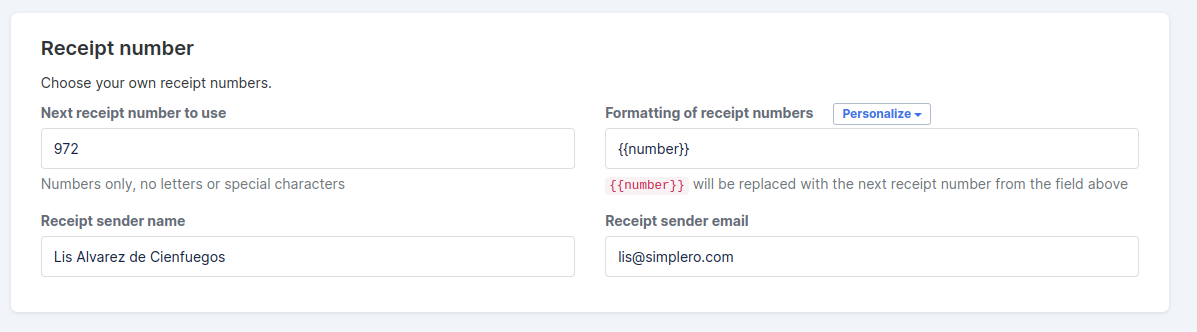
Scroll down to the Receipt number section
-
Enter or update:
-
Receipt number
-
Sender name
-
Sender email
-
-
-
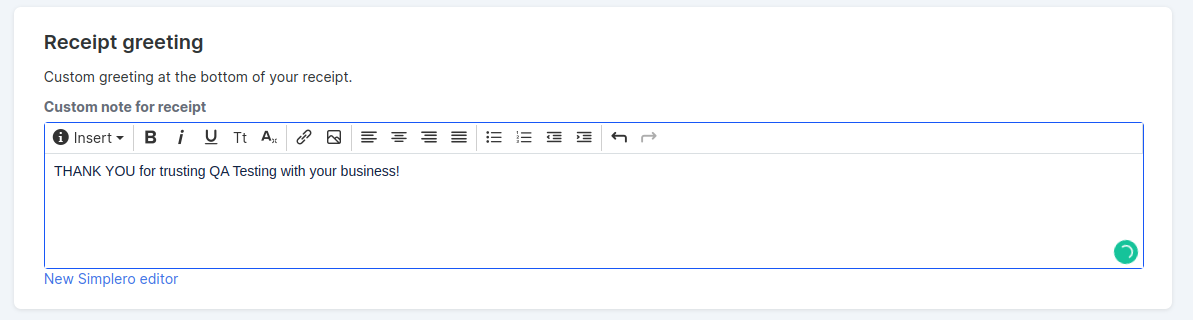
Scroll down to the Receipt greeting section
-
Enter the message you'd like to appear at the bottom of every receipt.
-
-
Save changes
Set Up Receipt and Credit Note Notifications
You can get an email copy or SMS notifications when purchases, cancellations, receipts, and credit notes are issued.
- Select Settings -> Products
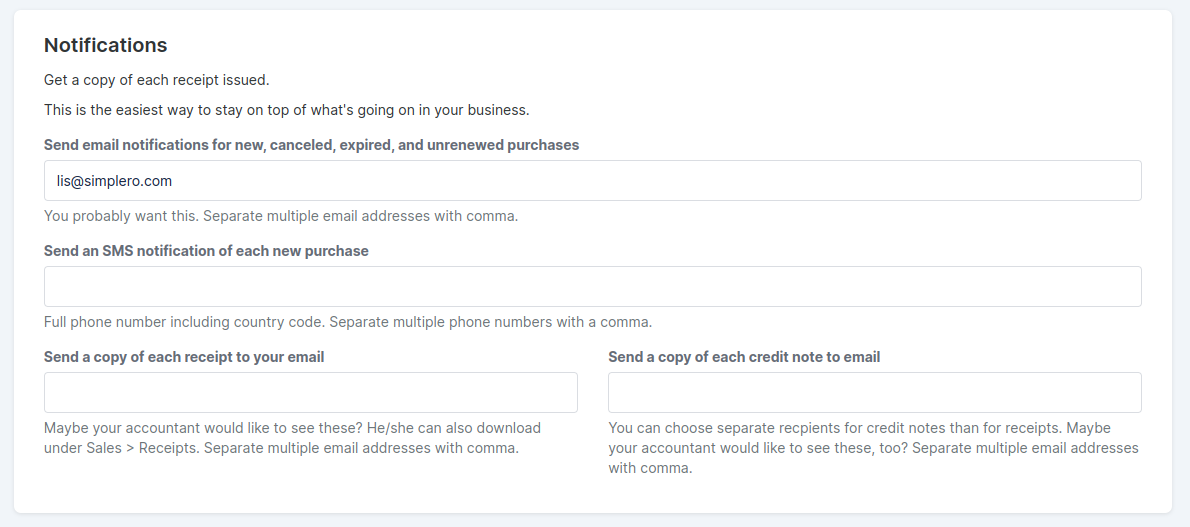
- Scroll down to the Notifications section
- Enter the email address(es) where you'd like to receive notifications for:
- New, canceled, expired and unrenewed purchases
- (Optional) Copies of receipts
- (Optional) Copies of credit notes
- (Optional) Enter a phone number to receive SMS notifications (including the country code)
- New, canceled, expired and unrenewed purchases
- Enter the email address(es) where you'd like to receive notifications for:
- Save changes

___MESSAGE___
___MESSAGE___