

Course Certificates
Included in Simplero plans: Scale and Skyrocket
If you use Simplero, you don’t need to purchase separate software just to award certificates to the people who complete your courses. You can generate Certificates automatically in Simplero, thus saving money as well as making things simpler for you.
At the End of This Lesson
You'll be able to automatically award professional-looking certificates when someone completes your course, with optional requirements like passing a quiz first.
Before You Start
-
A course already created
-
Any logos, signature image, or PDF attachment you want to include (optional)
In this guide
-
Set up a Notification email when they receive a Certificate
-
Require that your participants pass a quiz (or quizzes) to receive the certificate
- See the Certificates awarded per course
Enable course certificates
-
Go to Content -> Courses
-
Choose your course
-
Go to the settings
-
Make sure that the setting "Disallow participants to mark lessons as completed" is OFF

-
If it is turned OFF, the ‘Certificate’ section will appear in the settings. Turn on "Award a certificate to participants who complete all lessons"

Customize Course Certificates
You can keep your certificate simple or add extra information to create a more formal or accredited certificate.
Basic options
-
Primary logo
-
Certificate title and text
-
Show completion date
-
Show unique certificate serial number
Optional branding
-
Secondary logo or seal (for example, an accreditation seal) - Shown next to the primary logo
-
Signature image - Shown above the signature name
-
Signature name
-
Signature title or role
Optional course information
You can also include:
-
Body/course content – A short description shown beneath the course name.
-
Topics – A list of subjects covered.
-
Accreditation line – A longer accreditation or continuing education statement.
-
Hours – For example, "25 hours" or "24 CE hours."
-
Accreditation label – The name of the accrediting organization.
Optional attachment
If you have supporting documentation (course syllabus, appendix, additional information), you can attach a PDF that appears as a download next to Print and Share on the certificate page.
Set up a Notification email when they receive a Certificate
Set up an automatic email to notify your participants of the certificate they earned.
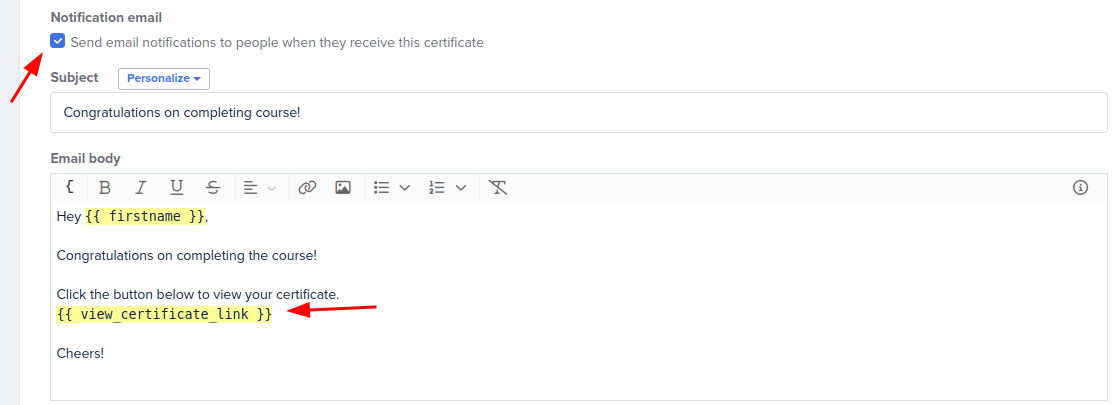
The certificate will be attached as a PDF to that email as well as a button to view it.
Require that your participants pass a quiz (or quizzes) to receive the certificate
-
Go to your Course
-
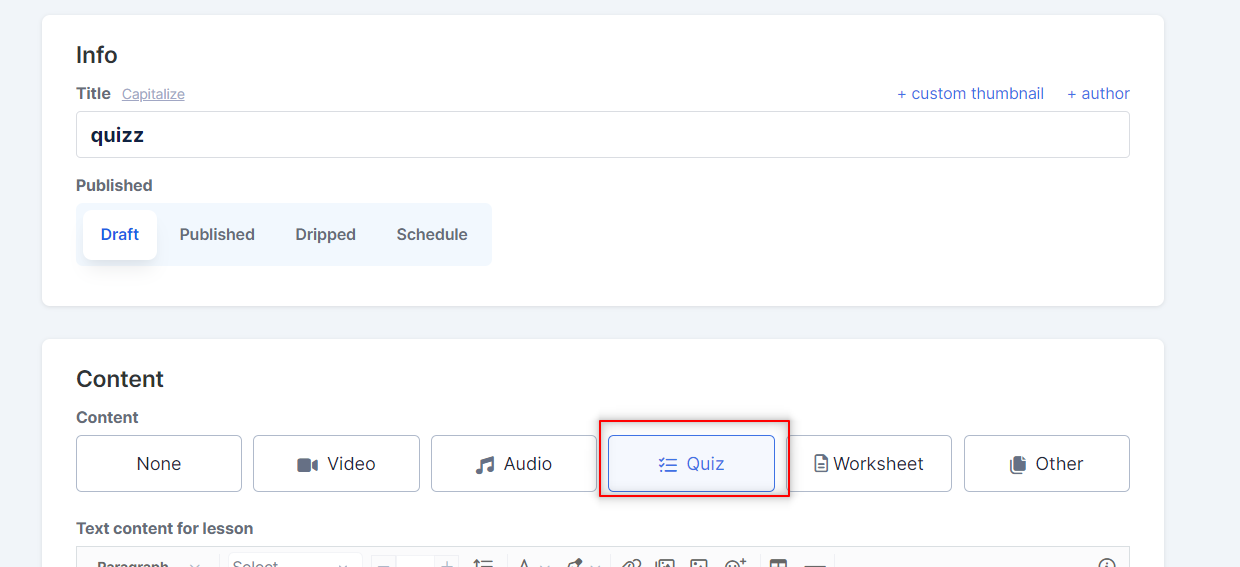
Create one or more quiz lessons (or use one you already have)
-
Note: Select Quiz under the lesson content.
-
-
On the quiz lessons, activate the passing grade and enter a percentage.
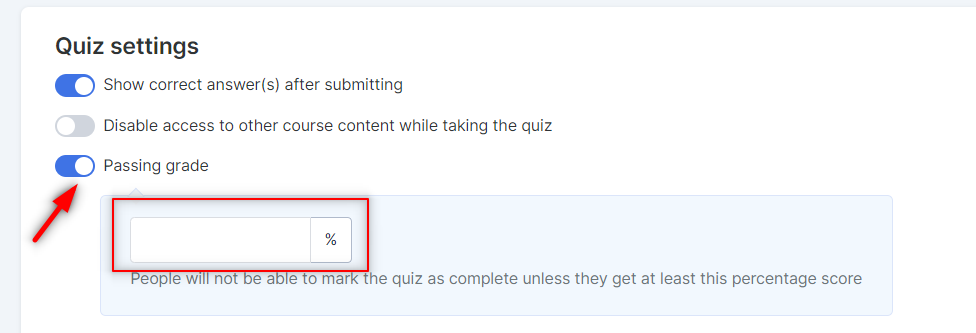
Only participants with that grade will be able to complete the lesson and receive the certificate at the end of the course!
See all the Certificates awarded per course
To see the certificates awarded to your members:
- Go to the course
-
Click on ... on the top right corner
- Choose awarded certificates

- You will see a list of all the awarded certificates for that course and be able to download them
- You can also export a list of all of them with the link to their certificate

Where will my members find their certificates?
Your members will:
-
Get a notification email with their awarded certificates attached as PDF
-
Find their certificates on their Dashboard -> Certificates. They can download them as a PDF from that page.

Troubleshooting
-
I don't see the Certificate section.
-
Make sure that the setting "Disallow participants to mark lessons as completed" is OFF
-
-
Certificates aren't being awarded.
-
Verify participants have completed all required lessons.
-
If a passing grade is required, make sure they achieved the minimum score.
-
Want to learn more about course settings? Check this guide.
