Working with Webhook Triggers
How to Work with Webhook Triggers
Triggers have the ability to post to what's called a Webhook.
A Webhook is a specific URL that you define that will receive an HTTP POST request that contains some information.
In this case, it'll be a JSON document with information about the object your trigger is on:
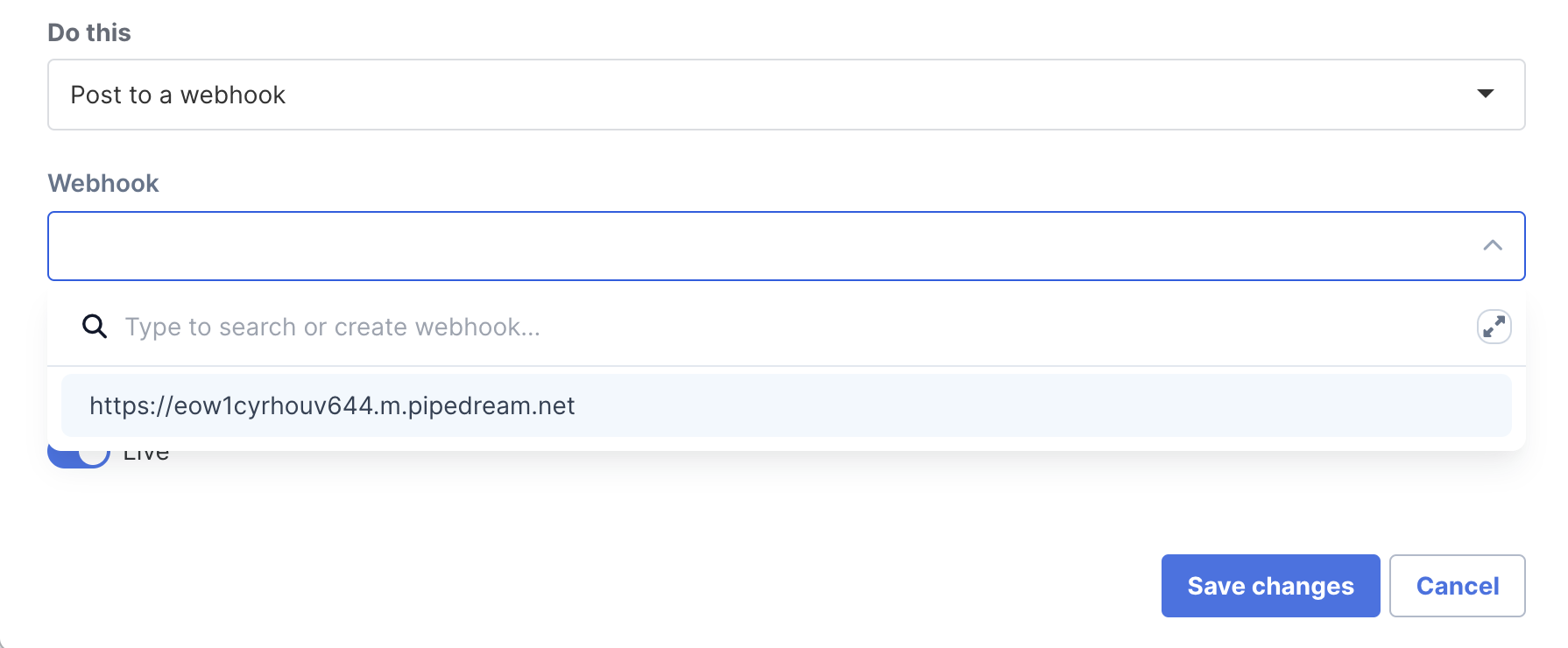
Let's take an example:
If you create a trigger on a product to fire each time a purchase is activated for the first time, then when a purchase is activated for the first time, we'll post to that Webhook with a JSON representation of the purchase.
If you set the trigger to happen when a participant is deactivated, then the JSON document will be for the participant.
The easiest way to get started with this is to use RequestBin. It's a free service that will provide you with a Webhook endpoint that you can enter into Simplero. You can then go see exactly what's posted. Once you've written your own code, you can change the Webhook URL in the trigger in Simplero.
Manage your Webhook Triggers
Navigate to your Simplero dashboard >> Settings >> Integrations:
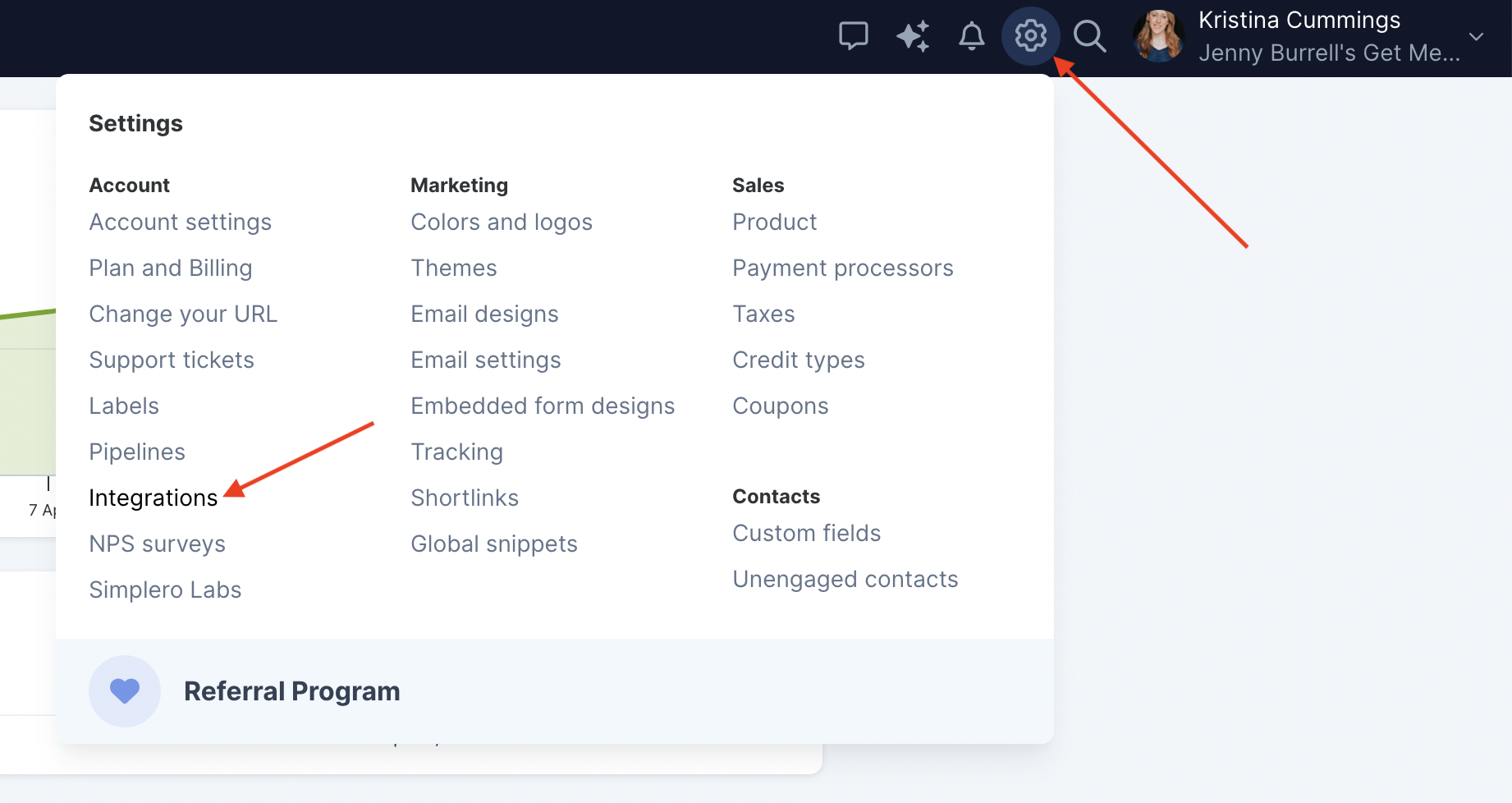
Scroll down to the Webhooks section.
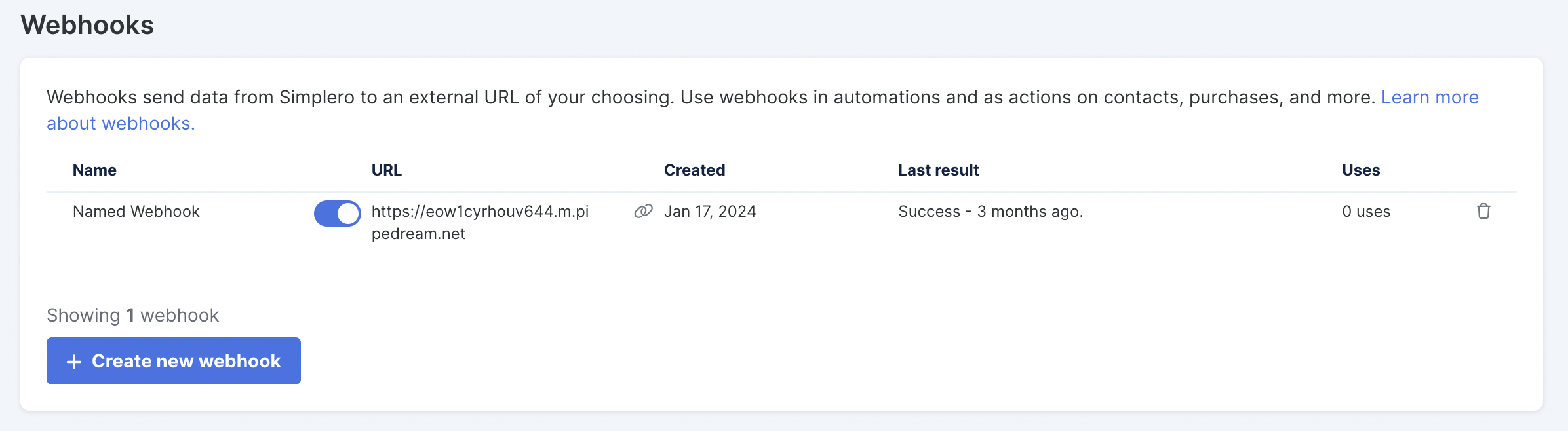
You’ll find here all webhooks that are being used in your Simplero account and can also create new ones using the button at the bottom: + Create new webhook.