
Global Snippets
Ever wanted to use one block of text across multiple places in your Simplero? Maybe the same exact sales pitch in the signature of a broadcast, on an order form, on a sales page and/or in an email autoresponder.
Well, Global Snippets allow you to do this. You can create custom text one time and then place the snippet code anywhere you want, and the text will be added. This allows you to have a uniform message across your platform.
For example, you could create a global snippet called "Featured Product" and just add the global key in all the places I want that message to show up, and then edit the message each month with the new featured product text from my global snippet screen rather than remembering to update it in all the places I want to put it.
Below you will find instructions on how to both create the global snippet and how to use it.
Creating your Global Snippet
- Select Settings from your Simplero Dashboard
- Select the Global Snippets option
- Click the + Add a global snippet button

- In the Key box, enter your Interpolation key. This is a bit of text you are going to add the snippet code to so it knows what text to populate. For example, if the text described the color red, you might use "colored" as your key
- In the box to the right is where you will write the text you want to populate when the key is used


- Scroll down and click the Save changes button
Now that they are set up, you are ready to use them.
Using the Global Snippets
To use the global snippet, you will place the text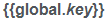 anywhere you'd like the snippet text to show up. Remember to change the word key with the key you established.
For example, using our Colored example above, if my key is Colored I would type . The system will automatically replace the key with the text that you entered in the box.
You can place this in the liquid code of a site page, a text box, or email broadcasts.