Create a Bot
Included in Simplero plans: Skyrocket. See plans here.
Simplero Bot is an AI-powered "impersonation" of you, the creator. It's designed to respond to questions just as you would, pulling from your own content and expertise. This isn't a generic chatbot—it's personalized to mimic your voice, knowledge, and style.
In this guide:
Create a Bot
Manage a Bot
What your bot can and can't do
Where members can use your bot
AI credits
Writing Styles
Bot conversations
Create a Bot
First, make sure they are enabled in the More menu:
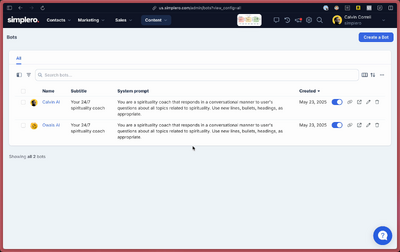
Navigate to Content > Bots.
You will see a list of all the bots that you have created. If you want a new one, click on ‘Create a bot’ on the top right:
You’ll be able to give it a name, subtitle, avatar, and the system prompt, then click on ‘Create bot’.
You’ll now see the Bot manage page.
Manage a bot
On the manage page, you will see:
Tiers - The different levels of your bot capabilities. These can be Learn more here
Channels - Let people start a conversation with a bot by texting a keyword to your SMS number or DMing your Telegram bot. The bot greets them, captures their details, and adds them to a list.
Sources - The list of sources that will feed the bot. You can choose the Tier that they will be available for
Link to the chatbot page that you can share with your members so they can use your bot
Edit the bot settings by clicking the settings button in the top right corner
Bot settings
Besides the name, subtitle, avatar, and system prompt, the bot settings let you set:
Welcome messages and media – what members see when they start a conversation with your bot.
Usage allowance per customer – set how much AI each customer can use on this bot. See AI credits below.
Web search – let the bot browse web pages when answering.
Testimonials – let the bot collect feedback from members and show it to others.
What your bot can and can't do
Your bot answers questions by searching its sources for excerpts that match the question. It does not read every source from start to finish.
How a source reaches the bot depends on its type:
Sites, pages, courses, modules, lessons, and media: the bot searches these and receives the excerpts that best match each question. If a video or audio has a transcript, the bot searches the transcript too.
Coach sources (uploaded files, pasted text, and links): the bot reads these in full every time it answers.
Members only search within the sources their tier has access to.
This matters when someone asks for a list. A request like "list all the lessons in my course" doesn't match one specific excerpt, so the bot lists only what its search surfaced. The list can come back incomplete.
Ways to get better lists:
Add an outline, syllabus, or table of contents as a Coach source. The bot sees it in full on every answer.
Ask about one module or course at a time, for example "What lessons are in the Getting Started module?"
Follow up with "What else is in that module?" when an answer seems short.
You can also set expectations in the System prompt, for example: "When you give a list, say if it may be incomplete."
Where members can use your bot
Members can reach your bot in a few ways:
Through the link to the chatbot page on the manage page.
Inside a course: go to Courses, open the course, go to Settings, and add the bot under Community features. Choose the full bot or a specific tier. When a member gets access to the course, they get access to that bot.
On a site, by adding the bot link to the site navigation.
See the Access to Bots guide for more ways to share your bot, including private tiers in the member dashboard.
AI credits
Bot conversations use your account's AI credits (prepaid usage for the AI features in your account):
You control how much your members can use:
Set a free usage allowance for your members under Settings > AI usage & limits.
Override the allowance for a single bot in the bot settings.
Charge for usage beyond the allowance by creating a Credits product and selecting it under Settings > AI usage & limits.
Members can check their own usage from the profile bubble at the top right corner > AI Usage.
For full details, see the AI Usage & Limits guide.
Bot Writing Styles
Each bot can be set to a specific writing style. This will control the tone, length, and structure of its responses. Choose the style that best fits how you want the bot to communicate.
Style
Best for
What it does
Normal (Conversational)
Everyday use
Gives short but complete answers, asks clarifying questions when needed, and suggests relevant follow-ups to keep the conversation going.
Concise (Bare minimum)
Quick answers
Responds briefly and directly, using as few words as possible. No elaboration, no follow-up questions.
Explanatory (Teaching mode)
Learning a new concept
Breaks ideas down step by step, using examples or analogies where helpful. Prioritizes clarity over brevity.
None
Testing raw model behavior
Uses the model's raw default behavior — no added guidance on tone, length, or format.
Formal (Proper, precise)
Professional communication
Uses well-structured, precise language and a professional tone. Thorough but concise, without casual expressions.
Coaching
Thinking through a problem
Responds like a high-trust thinking partner rather than an assistant — skips obvious advice and step-by-step instructions to focus on the real issue.
Writing
Reviewing your own copy
Gives feedback instead of rewriting your text — points out what works, what doesn't, and offers line-by-line suggested edits so your voice stays intact.
Hook from transcript
Pulling hooks from video/podcast content
Extracts the strongest attention-grabbing lines from a transcript, using only phrases that already exist in it rather than inventing new ones.
Tip: If you're unsure which to use, start with Normal for general conversations, Explanatory for learning something new, and Concise when you just need a quick answer.
You can lock the writing style, the AI model, and other controls so members can't change them.
Bot Conversations
On the conversations tab, you can see the questions that have been asked of your bot and the responses provided. You can click on each one of them to see the full conversation with the bot. Each conversation shows the number of messages and the AI credits it used.
Answers also show the sources the response drew from. Expand a source to see the exact piece of content the bot used.
Keywords
bot can't find, bot didn't list everything, incomplete list, bot missed lessons, list all my lessons, bot limitations, what can my bot do, AI credits for bots, bot welcome message, lock writing style, bot model, add bot to course, bot sources, coach sources, bot settings