

Tasks
Included in Simplero plans: Skyrocket. See plans here.
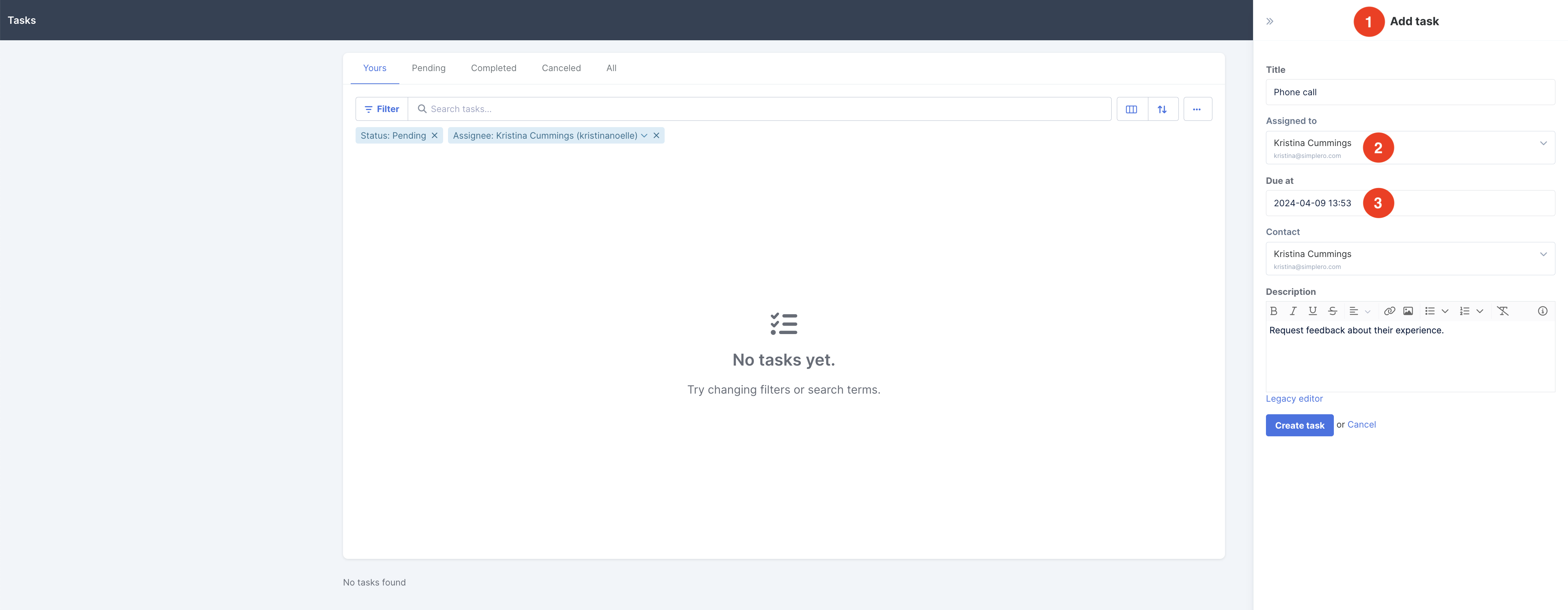
It allows you to manually:
Create a task
Assign it to a team member
Set up a due date
Complete tasks
First, make sure it’s enabled in the More menu.

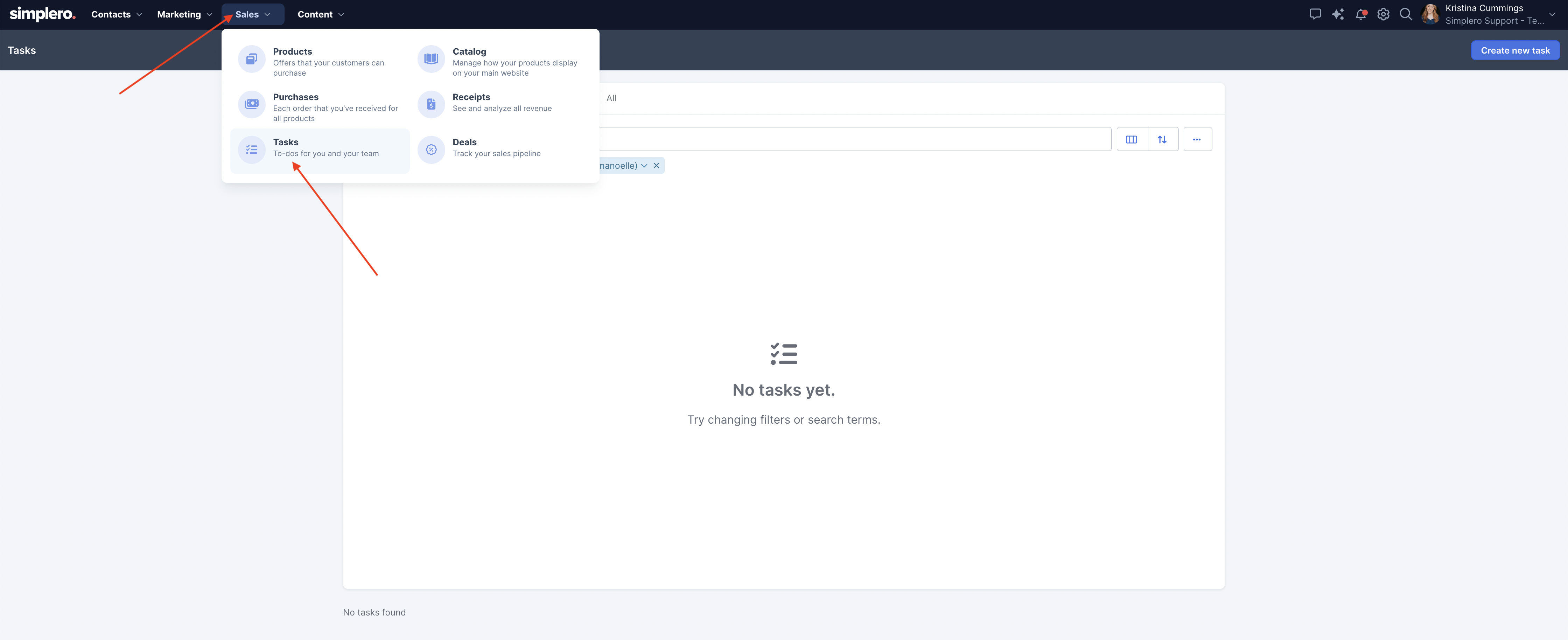
Now, navigate to Sales >> Tasks in your dashboard:
🤖 Now set up all the above as part of an automation
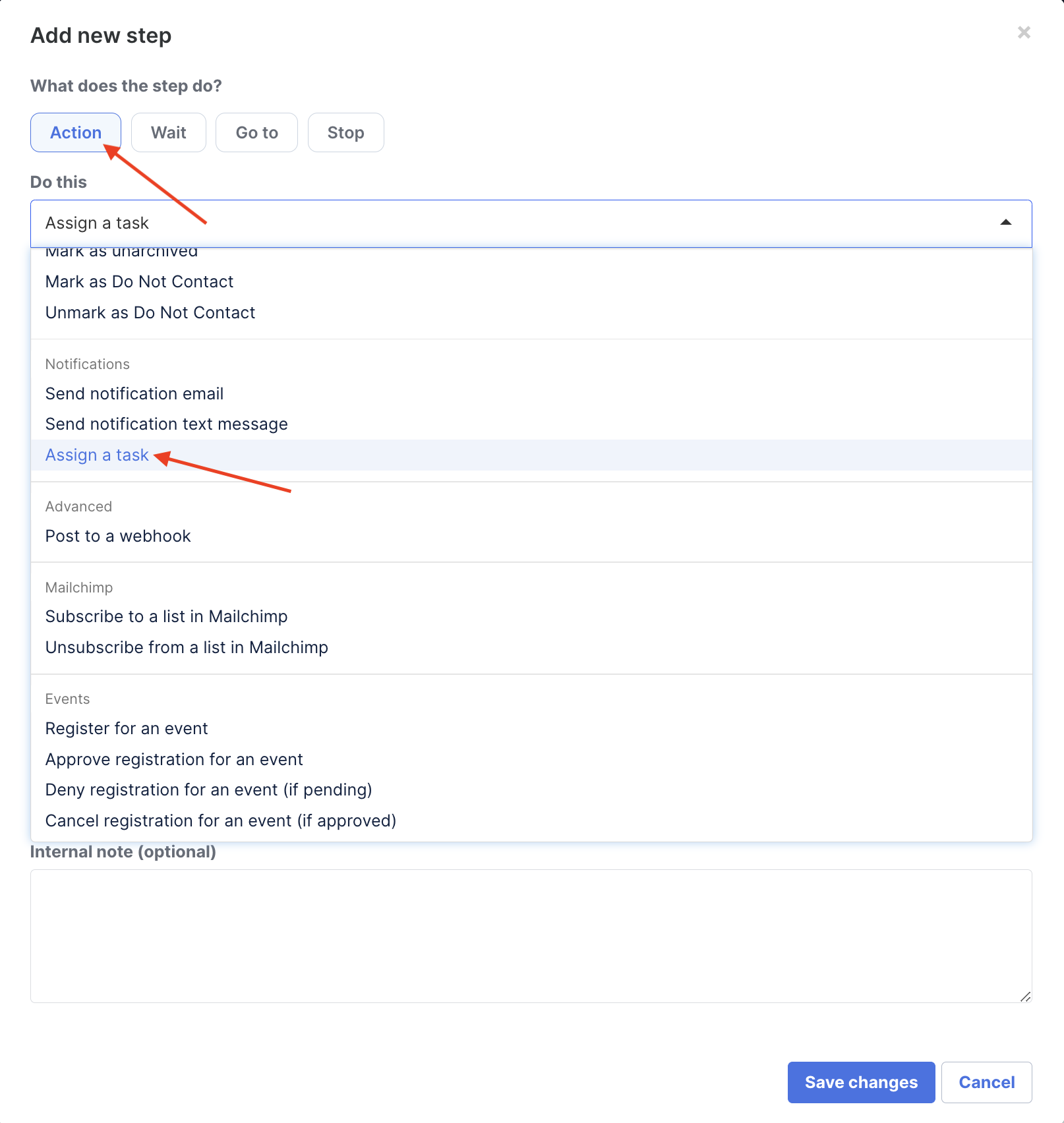
You can add steps to your automations to automatically create a task for you and/or your team members:
Once the task has been created, you can change the task status to Pending, Completed, Cancel, as well as Delete and Edit the task from the Task page:
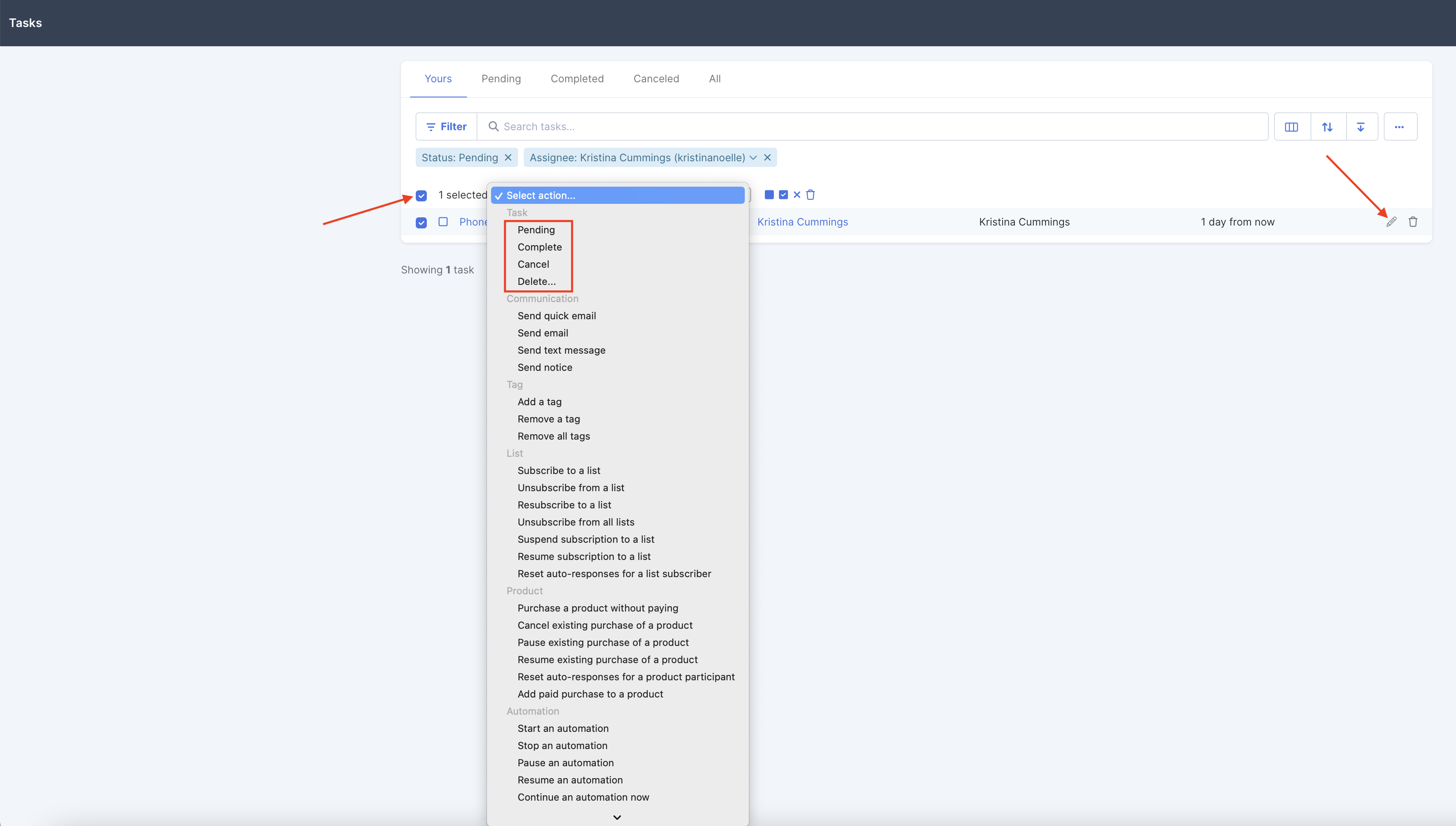
You can complete the task from the table:

And if you click on the task name, you can view the details of the task from the task viewer on the sidebar:

Notifications
Admins will receive an automatic email notification in the following instances:
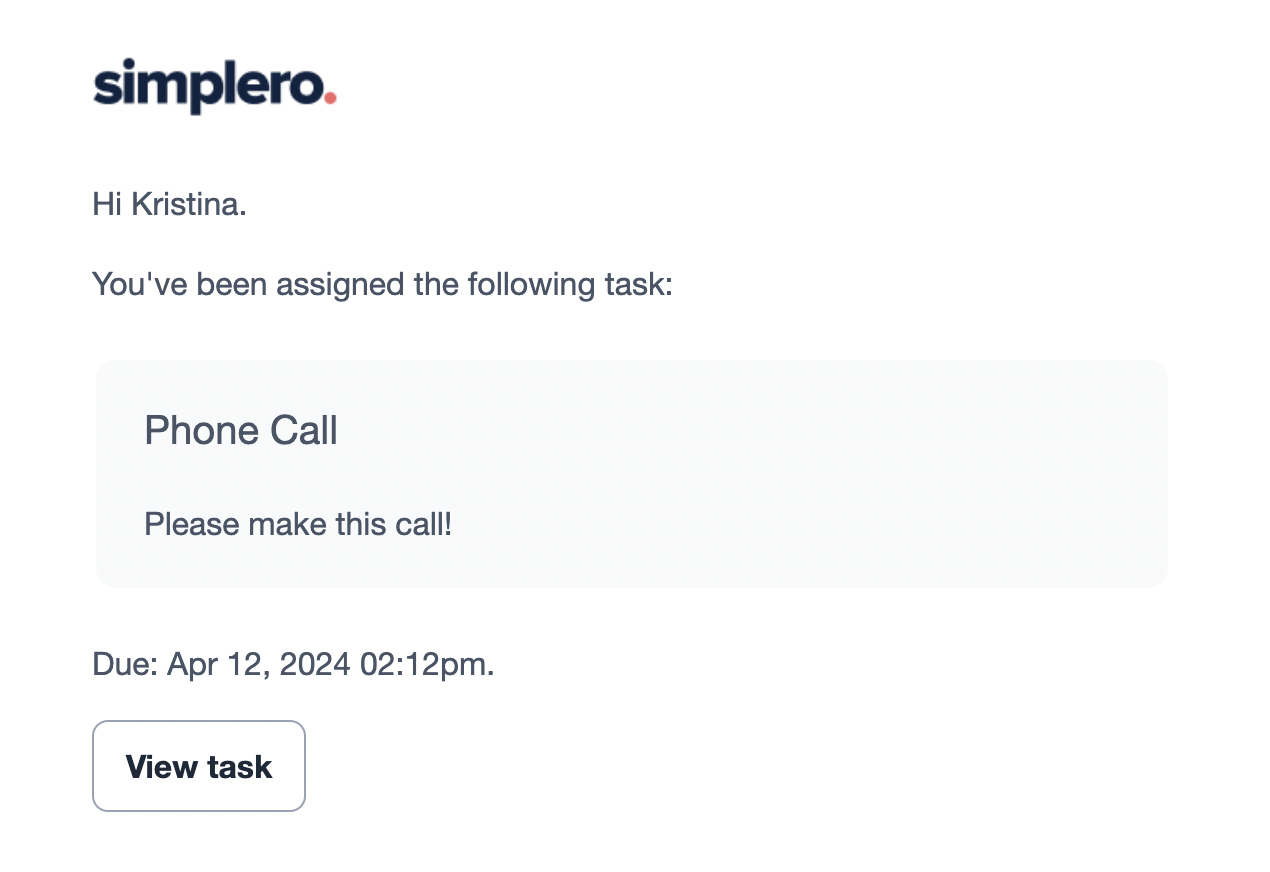
When a task is assigned to you
24 hours before the task due date
At the task due date
24 hours after the task due date
Go get your tasks done! ✔️
