

Moving a Purchase to Another Product or Price
Do you have a customer who mistakenly purchased the wrong product? Chose the wrong price? Or maybe you are closing a product and want to move current participants to another product?
In this guide, we will show you how to:
Note: If you want the person to still have access to the original product and its content, or you want to keep records of both (such as in the case of an upgrade), you will need to create a new purchase instead.
Move the purchase to another product
You can use the "Move..." button to completely move the person to the new product and revoke access to the original product and its content (like in the case of a mistaken purchase). This will not create a new purchase, only move the current purchase.
This can be done:
Moving a purchase manually to a new product
-
Select Products from your Simplero Dashboard
-
Select the Purchases tab
-
Locate and select the customer name
-
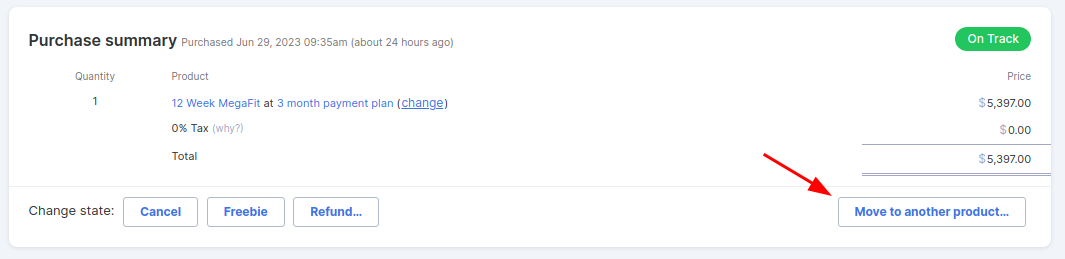
In the Purchase summary box, click the Move to another product… button
-
Choose the new product and whether you’d like triggers on the current and destination products should fire. These include participant and purchaser triggers set up on the product content tab.

Move purchases in bulk to a new product
- Go to the Product -> Purchases (where your purchases currently are)
- Select the purchases you want to move
-
Select action -> Move to another product

- Choose the new product
- Turn on "Fire triggers" if you want triggers in the new product to fire for those purchaess
- Click Move to another product
 c
c
The purchase will retain its current price, even though that price belongs to the old product. You can follow the steps below to change the price of the purchase if needed.
Note about payment plans and subscriptions:
The purchase will retain its original payment structure & price. If you move to or from a subscription price, you will need to adjust future charges. To do that:
- Change the price using the steps below
-
Create upcoming subscription charges. To do that, you will need to edit the new purchase by clicking on the pencil on the top right corner
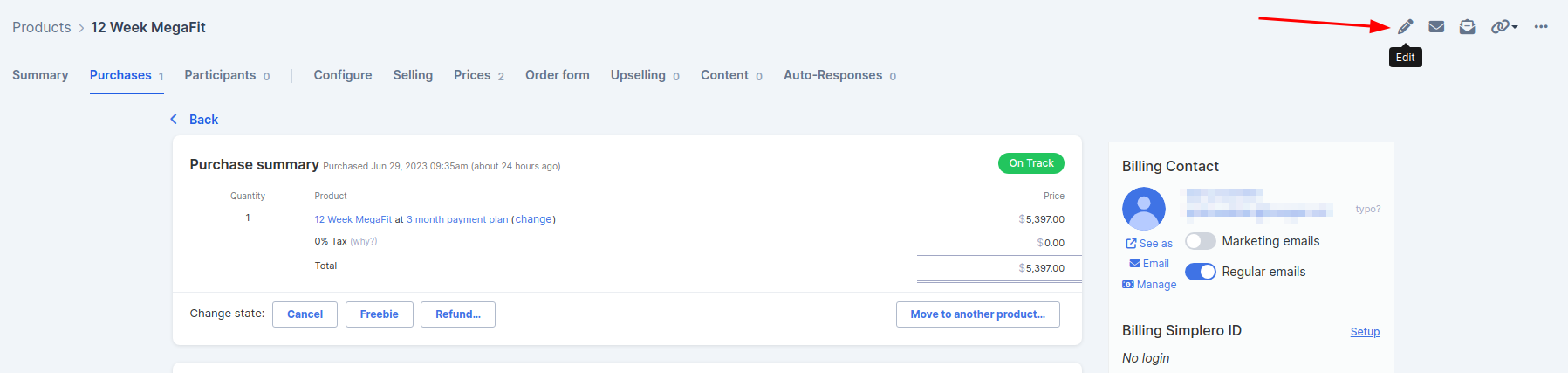
Then choose a period end date and commitment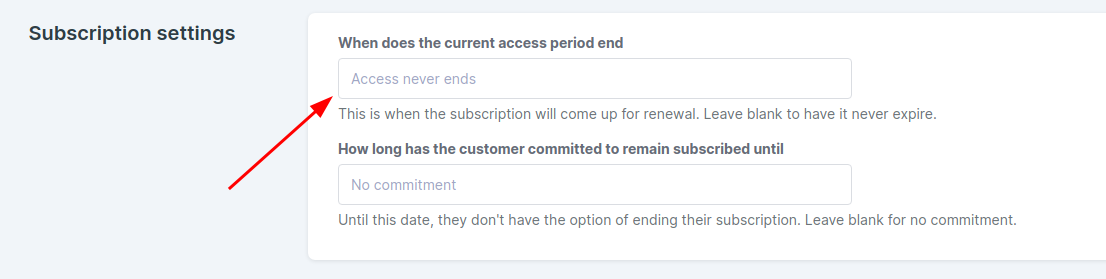
Change the Price of a Purchase
This can be done:
Change the price of one purchase manually
-
Select Products from your Simplero Dashboard
-
Select the Purchases tab
-
Locate and select the customer name
-
In the Purchase summary box, click the change button next to the price name
-
Choose the new price in the pop-up window

Change the price of purchases in bulk
- Go to the Product -> Purchases (where your purchases currently are)
- Select the purchases you want to move
-
Select action -> Change price

- Choose the new price and price period
- Click Change price
Note about payment plans and subscriptions:
- Doing this will not automatically create upcoming subscription charges, and it will remove any upcoming installments.
- If the subscription period is the same (for example, a monthly subscription), the purchase will retain the structure and the price will be automatically changed for the upcoming subscription period
- If you want to add new subscription conditions, you will need to edit the purchase by clicking on the pencil in the top right corner
Then choose a period end date and commitment
In all cases, please double-check the moved purchase carefully to make sure that future installments, subscription payments, and content access are correct!
