



We do everything we can to catch common typos (like gmial.com), but we can't catch everything. Sometimes people just hit the wrong keys.
Correcting an email address in a single purchase
If your customer made a typo on a single purchase:
-
Go to the purchase
-
Click on “Email typo?” under the contact information

-
This will allow you to change both the purchase email and the Simplero ID email on behalf of the contact
Note: If a different contact already exists with that new email, the system will detect it and ask if you want to move the purchase to that contact.
Correct or Update a Contact's Email Address
WARNING! - This will create a different Simplero ID linked to the new email. If your member has a Simplero ID that they want to keep, first they will need to follow the steps in this guide to change the email linked to their ID. After they do that, they will need to let you know so you can follow the steps in this guide and make sure they keep access to their content/emails.
-
Select Contacts from your Simplero Dashboard
-
Select All Contacts from the dropdown menu
-
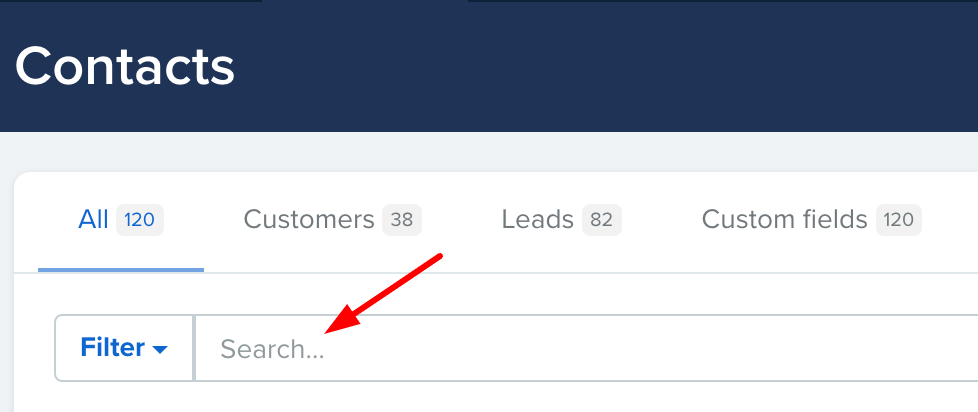
In the Search field, enter your contact's name
-
Click on the contact, and you'll be directed to the Contact Info page
-
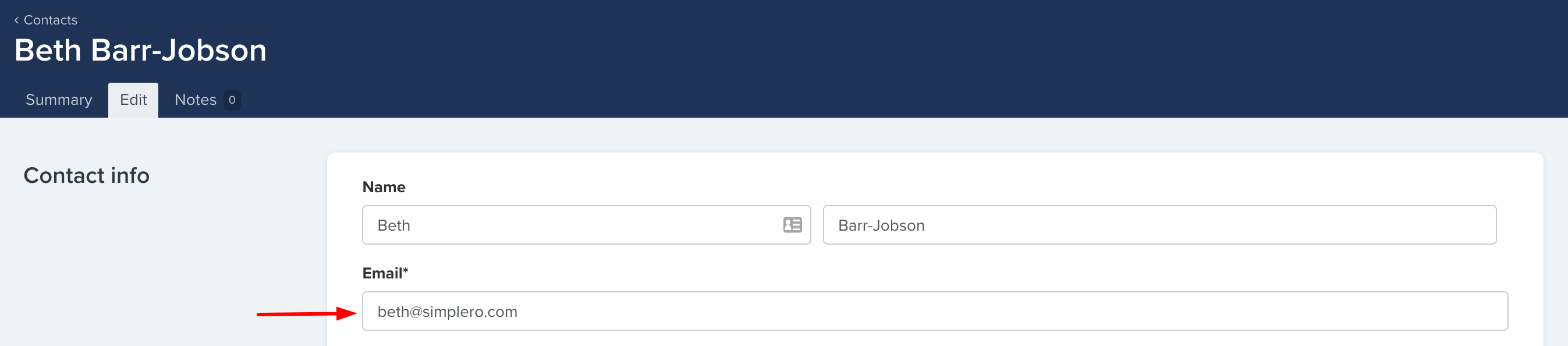
Click the Edit hyperlink as shown in the picture below

-
In the Contact info page, type the new Email address
-
Scroll down to the Purchase and participant info section and check all the places that the email address needs to be updated

-
Click the blue Save changes button!
Done! Your contact's email will be changed along with the billing and participant for all the purchases you selected and their Simplero ID.
