

Using Code in Emails and Pages (Interpolation Keys, Liquid Objects and Global Snippets)
Interpolation keys, Liquid objects, and Global snippets are powerful components that help you when building dynamic, personalised, and functional content for pages and emails.
What are their main differences?
-
Interpolation keys: Interpolation keys are placeholders that dynamically pull specific pieces of data from your system or database.
When viewed by the end user, they are replaced by the corresponding value - such as a user’s name, order details, or current date.
In Simplero, they are used in emails.
-
Liquid objects: Liquid objects are part of the Liquid templating language, which is widely used in platforms for creating dynamic content.
They provide flexibility for developers and content creators to display dynamic data on a page.
In Simplero, they are used in website and course pages.
-
Global snippets: Global snippets allow you to create custom text one time and then place that snippet of code anywhere you want, which will display the text. This allows you to have a uniformed message across your platform.
If you update the snippet, this will automatically update the text in all the places where you’ve added the code.
In Simplero, you can add these snippets anywhere. Here’s our guide on Global Snippets for more information.
NOTE! For each of the keys in this guide, you need to put brackets around them - like this: 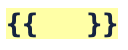
For example…
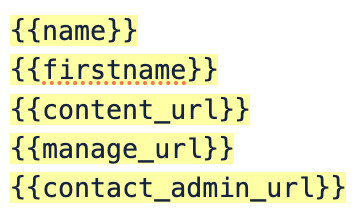
...and so on 🤓
List of Interpolation Keys Inside Simplero
Interpolation keys will fetch the data in the key and present it on the receiving end for the customer.
In Simplero, these are used in Emails.
Contact Related Keys:
name: first namesfirstname: first nameslastname: last name
fullname: first and last names
email: email
ref: affiliate ref string of referring affiliate
username: their Simplero ID
password: their password, if it was auto-generated by the system. If they changed their password, this will be blank.
signup_reminder: reminder of why they signed up
subjectprefix: prefix for the subject from the list, product, or affiliate program sent to
footer: footer text from the list, product, or affiliate program sent to
content_url: link to content for this list subscriber / purchase / participant / affiliate / coaching program
manage_url: subscription page
ref: affiliate that referred this contact (if the contact is linked to an affiliate of ours)
own_ref: affiliate name (when contact is an affiliate of ours, otherwise will show empty)
contact_admin_url: contact record admin page for the contact related to what triggered the email
admin_url: admin page related to that specific item. For example, if added to a trigger that starts after a worksheet response, it will lead to that worksheet.
customer.gdpr_consent_url: link to a page where the contact can tick the box and give consent
customer.needs_marketing_consent: show that ask only to contacts who have not given consent yet
Purchase Related Keys:
purchase_url: purchase thank you page
edit_purchase_url: manage payment page
purchase_id: purchase ID
product_id: product ID
product_name: product name
product_internal_name: product internal name
product_key: product internal name - URL paramaterized
product_category: product category
product_category_key: product category - URL paramaterized
quantity: quantity
price_name: price name
currency_code: currency code
coupon_code: coupon code
received_price: received price
received_tax: received tax
received_total: received total
incoming_price: incoming price
incoming_tax: incoming tax
incoming_total: incoming total
sales_price: sales price
sales_tax: sales tax
sales_total: sales total
last_charge_tx_id: last charge tax ID
last_charge_tx_gateway_id: last charge tax gateway ID
company_name: company name system field collected in order forms
vat_no: vat number system field collected in order forms
customer.credits.CREDITID.balance: Number of credits left
customer.credits.CREDITID.next_expiration_amount: Credits next expiration amount
customer.credits.CREDITID.next_expiration_date | date: "%b %-d, %Y": Credits next expiration date
Events Related:
event_time: event time
event_title: Title of your event
event_description: Description of your event
event_location: Location of your event
event_url: Link to the event
event_duration: great for reminder automations
event_relative_time: time until event start
event_details: event description (if one is added to the event settings) and the link to the event
participant_url: unique url for each participant to manage registration
organizer_name: organizer name
organizer_first_name: organizer first name
organizer_email: organizer email
link_name: Scheduling link name
scheduler_name: scheduler name
scheduler_first_name: scheduler first name
scheduler_email: scheduler email
recording_lesson_url: lesson that a zoom event recording gets imported into
Courses:
course_name
lesson_name
Other:
manage_url: link to manage their subscription
open_image_url: URL of the image we use to track open rates
field.(interpolation key) for each custom field with interpolation key set
field.(interpolation key)_(subfield) for each custom field with interpolation key set & subfield
field_(id) for each custom field
field_(id)_(subfield) for each custom field and subfield
global.(key) for each global snippet
survey_score
contract_title: Contract title
contract_signature_url: Link to request a contract signature
Special cases:
Facebook URL fields, telephone fields, and Twitter handle fields all ordinarily output an HTML link. In these cases you will follow the format below:
URL fields: 
(note the spacing between text and brackets and the "_plain" at the end of the key)
What if the Key Appears Blank in the Email?
Interpolation Keys are object-oriented, which means the object that triggers the automation email (or the recipients of the broadcast) need to match the object where the key was added. If not, the key will appear blank for the recipient.
Here are some examples:
If you add an interpolation key from a…
-
Scheduling Link…
…to an automation email - then the trigger that starts the automation with that email needs to fire on the scheduling link.
…to a broadcast - then the recipients of the broadcast need to be the event participants from the meeting they scheduled.
-
Survey…
…to an automation email - then the trigger that starts an automation with that email needs to fire on the survey.
…to a broadcast - then the recipients of the broadcast need to be the survey respondents.
-
Purchase…
…to an automation email - then the trigger that starts the automation with that email needs to fire on the purchase.
…to a broadcast - then the recipients of the broadcast need to be the purchasers of the product.
An automation triggered by a purchase, for example, cannot have emails that use a key for an event - the event key will appear blank in the email when the recipient sees it.
Liquid Objects
Liquid is a templating language that allows you to display dynamic content on web pages. So we need this key to be dynamic, because it’s based on a user dynamically visiting a site or a page.
Liquid objects are similar to interpolation keys, except they need to be used for web and course pages only.
customer: Contact object
field: Contact custom fields object
global: Global snippets object
internal_name: course, product, site, group and worksheet
Common Liquid Objects:
customer.first_names: contact’s first name
customer.last_name: contact’s last name
customer.name: contact’s full name
customer.email: contact’s email
account.name: your account name
survey_score: score in a survey
NOTE! Some of these liquid objects can also be used in emails like interpolation keys, but they must be used for web/course pages (interpolation keys will not work for pages).
For the following Liquid Objects, you don’t need to add more brackets around the brackets displayed below:
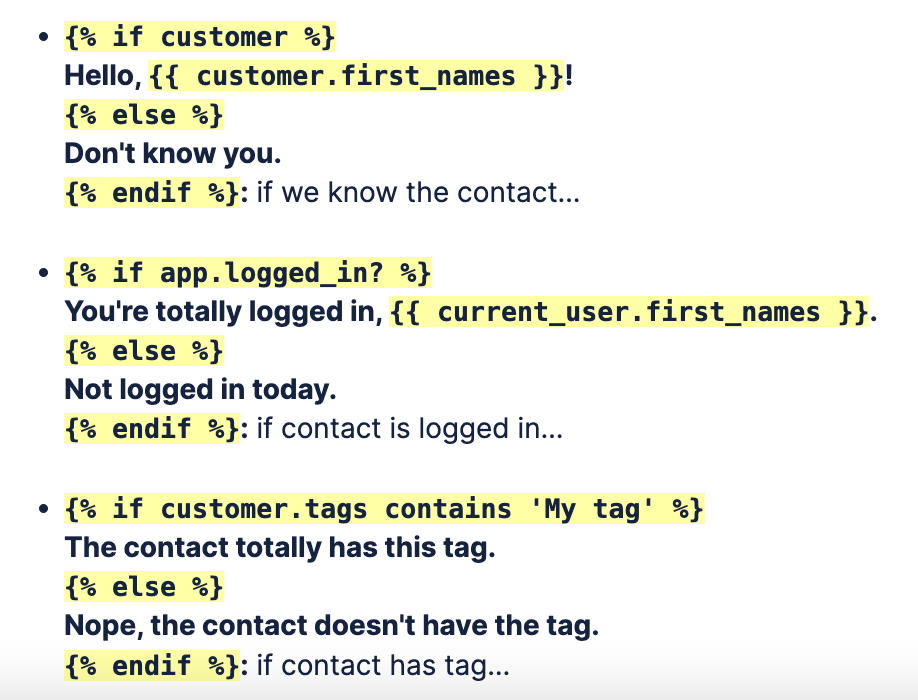
Here's an example of how to use multiple if statements:

Global Snippets
Here’s our guide on Global Snippets for more information.
Combining Global Snippets with Interpolation Keys or Liquid Code
If you insert a global snippet using {{global.some_key}} , these will be replaced as the very first thing when processing the email or the page.
This means that your snippet can contain other interpolations, or even Liquid code, and those will be evaluated in the exact same way as if you'd typed the contents of your global snippet directly.
However, if it contains another global snippet, then that won't be replaced in the same way again. It will work, but it'll be interpreted as a Liquid expression.
Also, if you use the global snippet in a Liquid expression, eg. {{ global.some_key | upcase }}, then we will NOT be evaluating any other interpolations or Liquid code inside that global snippet.magic li
