

Duplicating and Deleting an Automation
Duplicating an Automation
Select Automation from your Simplero Dashboard
In the Automations tab, locate and select your automation
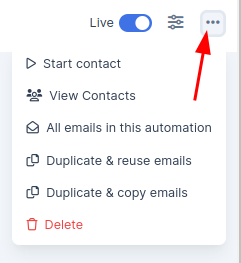
Select the three dots button on the top right-hand corner

You will now be able to choose Duplicate & reuse emails or Duplicate© emails in the automation.
Select the Settings button on the tab bar

Update the name of your automation
Click the Save Changes button
Update or add steps as needed to the automation
Warning! If you duplicate an automation, any Library emails linked to the original will be reused in the new automation.
Deleting an Automation
Select Automation from your Simplero Dashboard
In the Automations tab, locate and select your automation
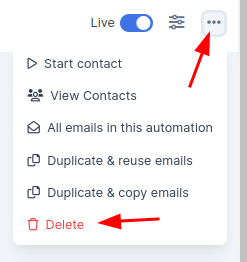
Select the Three dots button
You can now click Delete
Click OK to confirm your deletion

The automation will now be removed from your Simplero account. Any emails that were created within will still exist in your email library.
