


Create a Segment
Make sure Segments are visible on your dashboard menu by going to More menu and turning the Segments toggle On.

Select Contacts from your Simplero Dashboard.
Select Segments from the dropdown menu.
Click the red Create a segment button located in the upper right corner.

In the Include section, choose where you're collecting these contacts from (e.g., a list, broadcast, product, auto-response, automation, space, etc.).
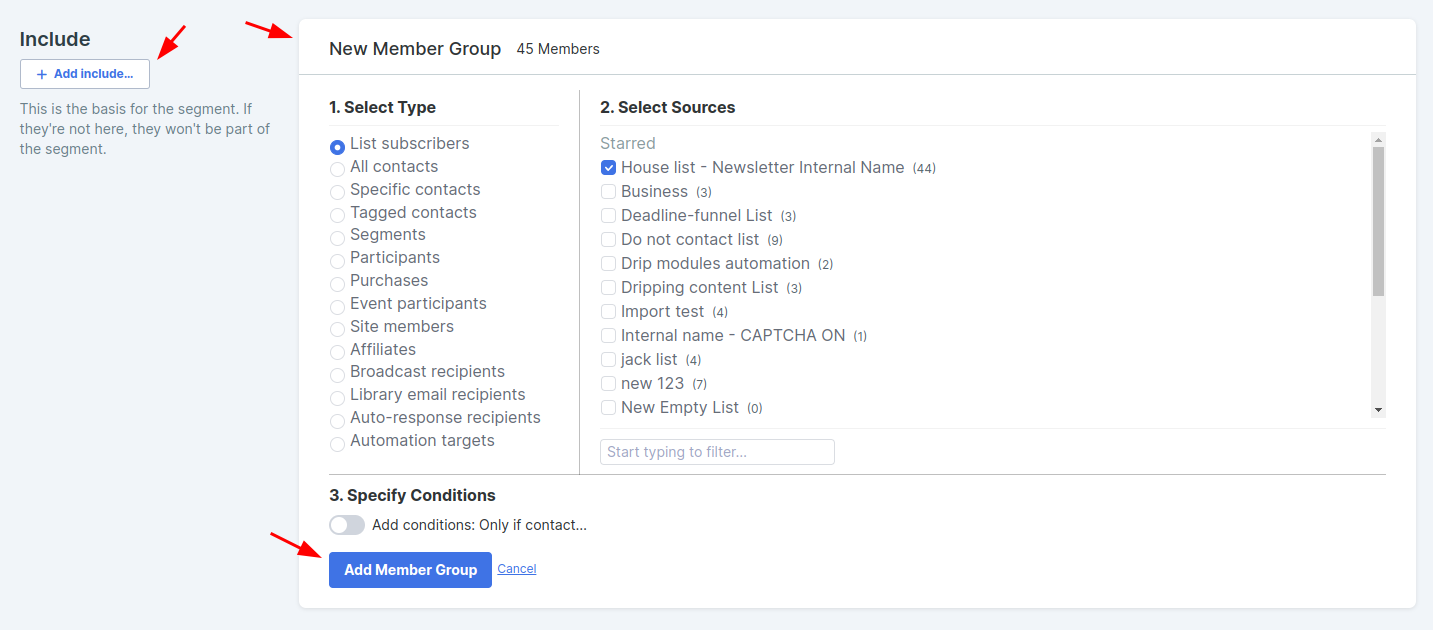
Then Select Sources (which list, broadcast, product, etc.).
Specify any additional Conditions for this member group.
Click the blue Add Member Group button, and this will start populating all the contacts for that segment.
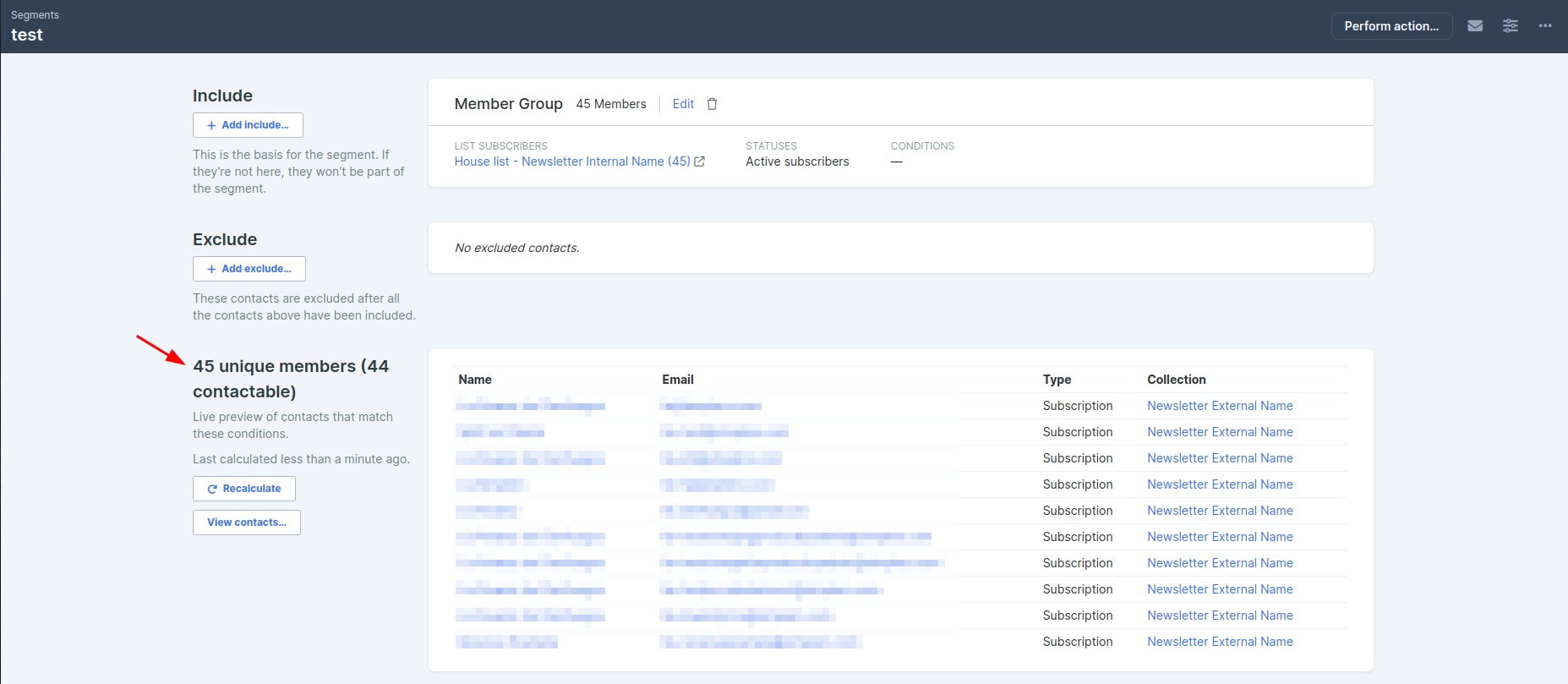
Click the white + Add include... button to add as many member groups as you would like, and repeat step 4 until everyone you want to include is listed.
Optional stop point
If you are looking to exclude a group of contacts, click the white + Add exclude... button under the Exclude section.

Complete each drop-down that appears, select the list, broadcast, tag, etc. that you want to exclude, and click the Save button.
You should now see a list of everyone in the segment.
